Author: pro

  • Here Are Some Reasons Why You Need A VPN

    Here Are Some Reasons Why You Need A VPN

    The widespread use of the internet, encompassing millions of individuals globally, underscores the extensive connectivity that technology has facilitated.

    In this digital era, the accessibility of a vast array of information has reshaped traditional practices, such as diminishing the need to physically visit libraries as people can readily access digital copies of books online.

    The internet has evolved into an expansive repository where almost anything one seeks can be found.

    Beyond providing information and entertainment, the Internet is crucial for professional endeavors.

    However, it’s essential to acknowledge that, alongside its benefits, the internet harbors risks. Cybercriminals leverage the digital landscape for illicit activities, including unauthorized surveillance.

    This brings us to the focal point of today’s discussion: the significance of having a Virtual Private Network (VPN). Before delving deeper into the subject, let’s establish what a VPN is.

    What Is A VPN?

    A Virtual Private Network (VPN) serves the critical purpose of encrypting private information when connecting with another device over the internet.

    In simpler terms, it acts as a protective shield against prying eyes, safeguarding your online activities.

    While free VPN options are available, some in trial forms, NordVPN stands out as a notable example. It provides easy-to-use servers and offers robust online protection.

    The need for a VPN becomes evident when considering the practices of internet service providers (ISPs), which often collect network traffic and, in some cases, may sell your private data without your explicit consent.

    For those who are consistently active on the internet, the importance of a VPN becomes even more pronounced.

    In the following sections, I will elaborate on specific reasons highlighting why having a VPN is crucial for individuals who spend significant time online.

    Reasons Why You Should Use A VPN

    Here are some of the reasons you use a VPN whenever you browse the internet on your devices.

    Prying Eyes

    Many Internet Service Providers (ISPs) indeed claim to offer secure services and servers. However, instances have occurred where some ISPs were found to engage in unauthorized practices, such as the unauthorized collection and use of private internet data from their clients.

    By utilizing a VPN, you can fortify your online privacy and prevent your ISP from accessing and potentially misusing your data.

    A VPN acts as a protective barrier, effectively blocking unauthorized access to your data and securing your network while you browse the internet.

    This additional layer of security ensures that your online activities remain private and shielded from any potential interference by your ISP.

    As such, a VPN serves as a valuable tool in safeguarding your personal information and maintaining a secure online experience.

    Break Media Barrier

    You’ve rightly pointed out a common frustration faced by viewers – content licensing restrictions that limit access to certain shows on streaming apps.

    This occurs when distribution rights for specific intellectual properties are sold to particular companies, restricting availability in certain regions.

    The good news is that VPNs can be a solution to overcome these geographical restrictions. By using a VPN, you can bypass these content limitations imposed by streaming apps.

    Essentially, a VPN allows you to connect to a server in a different location, making it appear as though your internet connection is originating from that chosen location.

    This enables you to access content that may be restricted in your actual geographical region, giving you the flexibility to watch the shows you’ve been eagerly anticipating.

    It’s important to note, however, that while VPNs can be effective in circumventing content restrictions, users should always adhere to the terms of service of the streaming platforms and respect intellectual property rights.

    Additionally, not all VPNs work seamlessly with all streaming services, so it’s advisable to choose a reliable and reputable VPN service for optimal results.

    Preventing Unlawful Login

    The concern about internet service providers (ISPs) retaining records of online transactions is valid and raises potential risks, particularly regarding sensitive information such as details of bank accounts.

    This information, if accessed by unauthorized parties, can lead to serious consequences.

    A VPN serves as a crucial tool in enhancing online privacy and security by encrypting your internet connection.

    By encrypting the data transmitted between your device and the VPN server, a VPN prevents anyone, including your ISP, from snooping or intercepting your online activities.

    This encryption ensures that your sensitive information, such as bank account details, remains confidential and protected from potential threats.

    Utilizing a VPN is a proactive measure to safeguard your privacy and prevent unauthorized access to your personal and financial information.

    It adds an extra layer of security to your online presence, making it more challenging for malicious actors to exploit your data.

    As a result, VPNs play a pivotal role in maintaining a secure and private online environment for users.

    Covering Up Location

    Using a VPN is an effective way to overcome geographical restrictions, commonly referred to as ‘Geo-blocking.’

    There are instances when certain websites or content are restricted or inaccessible in your country due to geographical limitations imposed by the website or content provider.

    When you connect to a VPN server in a different location, your actual location is masked, and it appears as though you are accessing the internet from the location of the VPN server.

    This allows you to bypass the Geo-blocking restrictions and access the content or websites that may be restricted in your country.

    Essentially, a VPN enables you to navigate the internet freely and access the information or services you need, regardless of the geographical constraints imposed by Geo-blocking.

    This capability makes VPNs valuable tools for individuals seeking unrestricted access to global content, ensuring a more open and inclusive online experience.

    Conclusion

    As you can see, these are some reasons you need to have a VPN network to browse the internet. With a VPN, you can do many things that you could not do on the internet before.

    VPNs also protect you from prying and nosy people and the deceitful practices of your internet service provider. So now you know that you need a VPN. It would help if you got yourself a VPN to aid in and make your online activities much smoother. You can also learn how to remove the reading list from your Google Chrome browser.

  • How To Delete Your Telegram Account Permanently

    How To Delete Your Telegram Account Permanently

    If you are considering the deletion of your Telegram account due to reasons related to the messaging app, this article provides a professional guide on the process.

    Whether you are using an Android or iOS device, the steps outlined here are designed for ease of execution.

    It’s important to note that the Telegram app cannot be uninstalled directly from your Android or iOS smartphone; instead, the procedure requires the use of a web browser.

    This is the sole method through which you can either deactivate or permanently delete your Telegram account.

    However, it is crucial to be aware that the deletion of your account is irreversible, and reinstallation of the app in the future will result in an inability to recover your chats.

    For those contemplating a future reinstallation to resume prior usage, it is recommended to create a local backup of your chats before proceeding with the account deletion process.

    How To Delete Your Telegram Account 

    Below are the steps through which you can delete your Telegram account.

    1. You will have to visit the telegram deactivation page on the net. Here is the link to use. https://my.telegram.org/auth?to=deactivate
    2. Enter the phone number you used in registering for an account on Telegram. The number will start with the country code, which is +233 for Ghana
    3. Now, input the confirmation code that will be sent to your telegram account
    4. Now, click on ‘deactivate account’
    5. Confirm your decision by clicking on ‘yes, delete my account

    Your telegram account will now be deleted permanently and you are done.

    Conclusion

    The process outlined above demonstrates how to delete your Telegram account, showcasing its straightforward nature.

    It is important to note that utilizing the Telegram app itself for this purpose is not feasible; instead, the deactivation must be carried out through the dedicated online deactivation page.

    Furthermore, for those planning to reinstall the app in the future, it is advisable to create a local backup of your chats before initiating the deactivation process.

    This precaution ensures the preservation of chat history should you decide to resume usage at a later date.

  • Some Of The Best Telegram Bots To Use

    Some Of The Best Telegram Bots To Use

    The surge in Telegram’s popularity has led to a substantial increase in downloads, making it a prominent privacy-focused app.

    Telegram has positioned itself as a direct competitor to Meta’s Whatsapp, a widely used messaging platform globally.

    In a recent article, we delved into how to use Telegram bots, and in this piece, we will explore the best Telegram bots to enhance your messaging experience.

    For those not yet familiar with Telegram bots, let’s briefly explain what they are.

    What Is A Telegram Bot?

    Telegram bots serve as third-party applications that any Telegram user can create using the Telegram Bot API.

    These automated accounts function as chat entities and can be added as contacts, allowing users to interact with them.

    Bots were introduced to the Telegram app in 2015, expanding its functionality and offering users the flexibility to create bots for various purposes.

    Best Telegram Bots To Choose From

    So now that you know what a Telegram bot is, let us look at some of the best ones that you can use on the Telegram app. Bots can be used for many things according to how they were programmed by the makers.

    There are bots for playing music, sending emails, and many other tasks. Keep in mind that we cannot define what a good telegram bot is. Many you can do so after you have tried these out.

    Trello Bot (username- @trello_bot) 

    mytrellobot

    This is a Kanban board for setting tasks and getting notifications from your Trello board. Before using the Trello bot, you first have to let it know the board to which you intend to link it. Once the connection has been completed, you can now add a Trello board to the group and even create some Trello cards.

    Just search for @trello_bot in the search engine in the app and then start a conversation with the bot after locating it. You will have to choose the event to receive your Trello notifications

    Gmail bot (username- @gmailbot)

    You can use your Gmail account without having to leave Telegram while chatting. All you have to do is to search for @gmailbot. This bot can be used for receiving, sending, and replying to emails quickly as if they were instant messages.

    Just locate the bot by searching for it and then pressing on the ‘start’ to begin chatting with the bot.

    Spotify bot (Username @spotify_to_mp3_bot)

    This bot is strictly for music lovers on Telegram. This is a music bot that allows you to play music without having to leave Telegram. You will have to link your Spotify account to the Spotify bot for this to work.

    After that, you will then be able to search, download, and play your favorite music from the Spotify database. You will have to choose from a list of menus after the connection to your Spotify account has been completed.

    Manybot (username- @manybot)

    Creating a Telegram bot involves some bits of coding from the creator. Due to this, people were not able to create the bots they needed. However, manybot solve that problem easily by allowing you to create a bot without any coding knowledge.

    To create a new bot with manybot, start the command and then go to BotFather which is used for creating new bots, and follow the prompts on creating the bot.

    You will choose a new bot name and an API token which will be linked to Manybot. After that, give a short description of the bot, and you are done.

    OpenMember 

    Openmember is one of the best bots that you can use on Telegram. This bot allows you to accept membership payments for your Telegram channels and groups.

    It has a dashboard that allows you to charge people before they can get access to your group, channel, or even your course. 

    All you have to do to get started is to visit openmember. co and sign up, after that follow the process to set up and start receiving payments.

    GameBot 

    There was a time when you could play games on WhatsApp but not anymore. But on Telegram, it is now easy to play games with your friends.

    GameBot helps you do that, all you have to do is search for @gamebot and then click on start, and the bot will ask you to choose the friend that you want to play the game with.

    After choosing your friend, you will then be asked to choose the game that you want to play with your friend. 

    Conclusion

    So these are some of the best Telegram bots you can use on the Telegram app. There are a lot of bots you can use on Telegram depending on what you want. Remember to search for the bots with their usernames and not their display names.

    Searching with a username allows the specific bot you are looking for to come out quicker. 

    You now know how to look for bots and make use of them. Hope this article has been helpful for cherished tech lovers. 

  • How To Add A Pen Menu To Your Windows 11 Taskbar

    How To Add A Pen Menu To Your Windows 11 Taskbar

    If you are utilizing a Windows 11 touchscreen device, you may not be aware that you can integrate a pen menu into your Windows 11 taskbar.

    This article is intended for users who are employing a touchscreen machine with the Windows 11 operating system.

    The pen menu can prove to be a valuable tool, particularly in situations where quick access to specific applications is essential.

    If you have observed that the pen menu is not visible in your taskbar, the following steps will guide you on how to enable it.

    How To Add The Pen Menu To Your Taskbar

    To add the pen menu to your taskbar, there are some simple steps that you will have to follow. Here are the steps below. Please follow them carefully.

    1. Rightclick on the taskbar and then go to settings
    2. Now, go to personalization and then to the taskbar
    3. Now go to ’taskbar corner icons’
    4. You will see the ‘pen menu’ with a switch beside it
    5. Turn that switch on to activate the pen menu to appear in the taskbar 

    After this has been done, you will now see that a small pen icon has appeared in the taskbar. This pen icon can be seen in the lower right corner of the screen near to the left of the clock.

    Tapping on the pin icon, you will see a small pop-up menu that will show you shortcuts to the Microsoft whiteboard, snip & sketch, pen settings, and pen help. All these are shortcuts in the pen menu. You can change and choose the shortcuts that you prefer to appear there by going to the ‘Edit pen menu’.

    How To Remove Pen Menu From The Taskbar

    Removing the pen menu from the taskbar is a straightforward process, similar to enabling its appearance.

    Follow the same steps detailed in this article, but instead of activating the pen menu by switching it on, toggle the switch off. Subsequently, the pen menu icon will vanish from the taskbar.

    Conclusion

    So this is how you activate the pen menu and cause it to appear in the taskbar on your Windows 11 machine. Please remember that you must be using a touchscreen device and have the Windows 11 operating system installed on it.

  • How To Locate Whatsapp Backup On Your iCloud

    How To Locate Whatsapp Backup On Your iCloud

    In situations where the need arises to locate WhatsApp backups within iCloud storage, diverse motivations may prompt such a requirement.

    Following the successful backup of WhatsApp data to iCloud, users have the capability to initiate the search for this data.

    Moreover, the ability to not only locate the WhatsApp backup data but also to extract specific elements from it is a valuable feature.

    It is imperative to note, however, that Apple does not offer a native function for this specific task. Consequently, the recourse involves the utilization of third-party applications.

    Dr. Fone – Recovery (iOS) is a reputable third-party application designed to facilitate the retrieval and extraction of WhatsApp backup data stored on iCloud.

    This application extends its functionality to encompass the extraction of previously stored iCloud or iTunes backups, thereby providing users with the capability to preview contents through its intuitive interface.

    The ensuing steps delineate how to proficiently employ Dr. Fone – Recovery (iOS) to locate iCloud backups:

    How To Locate iCloud WhatsApp Backup Using A Third-party App. 

    1. Acquire the Dr. Fone – recover (IOS) app and open it. 
    2. Connect your ios device to your computer and choose the option to recover an IOS device from the home interface of the app
    3. From the sidebar, locate ‘options’ and then go to iCloud backup.log into your iCloud account where the former backup was stored
    4. After logging in with the Dr. Fone – recover (IOS), you will now be able to view the details of the backup files. Now choose the WhatsApp backup data you are looking for by selecting the iCloud backup that contains it
    5. You will be asked if you wish to download from the backup. Choose the WhatsApp feature, which consists of the chats and attachments of your WhatsApp backup to cut the time needed for the download shorter

    And you are done. After it has finished, you will be able to preview your WhatsApp chats and attachments from the interface of the app and save each one privately to your computer. Just click on the ‘recover’ button and you are good to go.

    Conclusion

    This concludes the process of accessing your WhatsApp chats and data following a successful backup.

    It’s important to note that Apple currently lacks a feature enabling users to view their iCloud backups directly.

    Therefore, the utilization of the recommended third-party app discussed in this article is necessary.

    We trust that this tutorial has proven helpful to you. For additional tutorials and comprehensive insights into technology-related topics, we encourage you to visit our site regularly.

    Stay informed and empowered with the latest advancements in the technological landscape.

  • How To Test A Microphone On Your Windows 11 Machine

    How To Test A Microphone On Your Windows 11 Machine

    For those using the Windows 11 operating system, especially those involved in sound engineering, music, podcasts, and similar activities, testing a microphone’s functionality is crucial.

    This process helps determine if the microphone is working properly and if the audio levels are appropriate. If you have your microphone ready, let’s proceed with the testing process.

    How To Test The Microphone On Windows 11

    First of all, you will need to make sure that you have connected the microphone to your computer via either Bluetooth or through a USB cable. After making sure of that, you can now follow the steps below.

    1. Right-click on the speaker icon in the taskbar
    2. Choose ‘sound settings’
    3. Scroll down and then locate ‘input’
    4. Now, click on the arrow icon that is next to the microphone that you are looking to run the test on
    5. Scroll down and locate ‘properties’ and then screen for the microphone you have chosen and look out for ‘test your microphone’
    6. Now, click on ‘start test’ and put your speaker to normal volume

    If you do not notice any moving blue line left and right, then you will have to check for the operation of the microphone. It may be that windows had not recognized the device. After the test is done, you will see the results displayed right next to the ‘start test’ button.

    It will be shown in the percentage output of the total volume that was identified by windows. The volume should be at 75% when you speak normally. 

    In case you did not see any activity of the microphone while you were testing it, try disconnecting and then reconnect again. Restart the computer if it still does not work. if all these do not work, then you would probably need to download microphone drivers for your machine and then try again.

    Conclusion

    So this is how you can use your windows 11 machine to test your new microphone to see if it is in the incorrect working condition before you start recording those hit songs.

    You can also check out how to add the Pen menu on your Windows 11 computer.

  • Google Chrome Now Has A Free PDF Editor For Users

    Google Chrome Now Has A Free PDF Editor For Users

    Google Chrome users will now have access to a free PDF editor, courtesy of the renowned software company Adobe.

    This extension, seamlessly integrated into the Google Chrome browser, empowers users to edit PDF files directly within the browser interface.

    Adobe asserts that this newly introduced extension encompasses “the most comprehensive set of PDF tools right in the browser,” enhancing the PDF editing experience for Google Chrome users.

    The significance of this announcement lies in the elimination of the need for users to download a separate Adobe Acrobat PDF editor when dealing with PDF files.

    With this extension, Google Chrome users can perform various PDF editing tasks without the hassle of additional downloads.

    This development signifies a more streamlined and convenient approach to handling PDF files directly within the Google Chrome browser.

    The New Google Chrome PDF Editor

    The newly introduced Adobe Acrobat PDF editor extension for Google Chrome will not only benefit Chrome users but is also extended to Windows users, accessible through their Microsoft Edge browser.

    This innovative PDF tool aims to simplify the often cumbersome process of finding a PDF editor or reader when encountering PDF files.

    The capabilities of this tool streamline PDF management, offering a smoother viewing experience for all PDF files.

    Users can conveniently download and share PDF files without the need for attachments, fostering efficient collaboration with friends and co-workers.

    The extension facilitates quick and easy additions of comments, highlights, and drawings directly within a browser window through the dropdown pane.

    A notable feature is the ability to digitally sign documents without relying on third-party apps, allowing users to fill out forms online digitally and seamlessly.

    Furthermore, users can manipulate PDF images by rotating, deleting, and reordering them to enhance viewing and streamline the printing process.

    The PDF tool also includes the functionality to convert PDF files into Microsoft document files without compromising formatting.

    An additional feature to look forward to in Microsoft Edge is the ‘save as PDF’ option, enabling users to rapidly save PDFs.

    This feature, already present in Microsoft Word, contributes to a cohesive and user-friendly experience for managing PDFs within the Microsoft ecosystem.

    The tools provided by this extension also extend to web pages, enabling users to convert web pages into PDF files, save them for later viewing, and perform various actions on web pages, enhancing overall productivity.

    Conclusion

    The forthcoming update of the PDF tool for Google Chrome and Microsoft Edge is poised to revolutionize how users engage with PDF files in their browser environments.

    A notable feature of this update is the ability for users to save web pages directly as PDF files, enabling them to conveniently revisit and review content at their leisure.

    For users leveraging Google Chrome or Microsoft Edge, it is strongly recommended to promptly upgrade to the latest versions of each browser.

    This ensures that users can avail themselves of the enhanced functionalities and improved PDF tools provided by the update, fostering a more efficient and versatile experience when interacting with PDF files within their browsers.

    Stay current with the latest browser versions to unlock the full potential of these advancements.

    You can also check out everything you need to know about Baidu here.

  • How To Use Your iPad As A Second Windows Display With The New Astropad Luna Display

    How To Use Your iPad As A Second Windows Display With The New Astropad Luna Display

    For individuals managing multiple setups in their office or home, Astropad presents a solution to streamline technological challenges.

    Specifically designed to address the need for an additional display on Windows monitors, Astropad has introduced an update to its Luna Display wireless dongles.

    This enhancement is particularly valuable for those whose professional tasks demand a secondary display on their Windows setup, especially when obtaining a physical second monitor is impractical.

    Traditionally compatible exclusively with Apple devices, the Luna Display wireless dongles have undergone an expansion to now include support for Windows computers.

    This means that Windows users can seamlessly utilize their Apple iPad and Mac devices as external monitors for their Windows computers, eliminating the need for a physical second monitor.

    Previously functioning solely within the Apple ecosystem, Luna Display’s wireless capabilities enabled Apple users to employ their iPad and Mac as additional external displays without the constraints of wired connections.

    With this recent development, Luna Display has extended its compatibility to cater to the needs of Windows computer users, providing a versatile and wireless solution for expanding display options.

    Connecting Windows To Mac

    Astropad’s Luna Display 5.0 is now accessible, and it brings more than just expanded device support.

    In addition to widening its compatibility, the latest version introduces notable enhancements for Mac users.

    Notably, individuals utilizing M1 Macs will now benefit from an improved and expedited setup flow, promising a more efficient and faster experience.

    This update underscores Astropad’s commitment to refining user experiences, ensuring that advancements in compatibility are complemented by optimizations tailored for specific hardware configurations.

    Users with M1 Macs can anticipate a smoother and quicker setup process, contributing to an enhanced overall performance when leveraging Luna Display 5.0.

    Requirements For Using iPad As A Second Display For Windows

    You will need to meet some requirements before you can use your iPad as a second display for your Windows computer through the AstroPad Luna Display. 

    1. The AstroPad Luna Display requires the following:
    2. Windows 10, 64-bit build 1809 and above
    3. iPadOS 12.1
    4. wifi network of 802.11 or wired ethernet

    The new upgrade will now make it easier for Windows users who use pads to use them to aid in their work by working as a second display to their Windows computers. The AStroPad Luna Display is available in both USB-C and HDMI varieties.

    However, you can use only USB-C with a Mac and Windows PC. People who already have the USB-C connectors can upgrade to the new AstroPad 5.0 to use with their Mac and Windows PCs.

    According to AstroPad, you can now use the Apple pencil on your Windows device due to the upgrade.

    This can be useful if you work in the field of architecture and other areas that require you to draw and make sketches often or if you are an artist who likes to draw digitally.

    You can buy the AstroPad Luna Display for GHS 730.66 on Amazon and other online shopping malls.

    Conclusion

    The recently launched AstroPad Luna Display 5.0 brings a transformative upgrade, allowing seamless connectivity between your iPad and Windows computer.

    This innovative capability enables users to effortlessly transform their iPad into a secondary display, enhancing productivity and workflow.

    Given the anticipated demand for this significant enhancement, acquiring an AstroPad Luna Display promptly is advisable before potential stock depletion.

    Don’t miss out on the opportunity to optimize your workspace and elevate your work efficiency with this latest advancement.

    Secure your AstroPad Luna Display now to unlock the benefits of an extended and versatile computing setup.

  • Here Is How You Can Disable / Remove ‘Reading List’ From Your Google Chrome

    Here Is How You Can Disable / Remove ‘Reading List’ From Your Google Chrome

    If you find that the reading list button in Google Chrome is not something you wish to use and you’d prefer to have a clean bookmarks bar, you can easily remove it from your browser.

    This allows you to customize your Chrome interface to better suit your preferences.

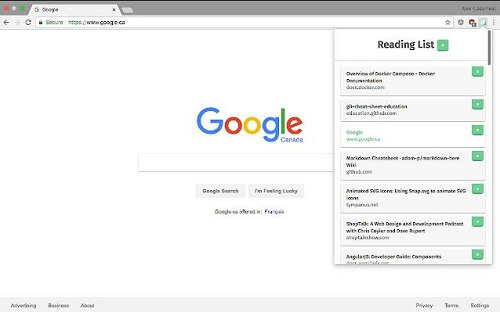
    What Is The Google Chrome Reading List Button?

    The Reading List button in the Google Chrome browser serves as a valuable feature, offering users a convenient way to save interesting articles for later reading.

    Once a webpage is added to the Reading List, it becomes easily accessible at any time by opening the Google Chrome browser and clicking on the Reading List icon.

    This functionality enhances the user experience by providing a seamless and organized way to manage and revisit saved articles.

    How To Disable Reading List In Google Chrome

    If you no longer find the Reading List button useful and wish to remove it from your Google Chrome browser, you can follow the steps below:

    1. Open Google Chrome on your computer.
    2. Look for the Reading List button, typically located at the top right corner of the screen.
    3. Right-click on the Reading List button.
    4. From the context menu that appears, select “Hide reading list” or a similar option.

    By following these steps, you can easily remove the Reading List button from your Google Chrome browser, providing you with a cleaner and more personalized browsing experience.

    Google Chrome Settings

    If you are using the latest version of the Google Chrome app and wish to disable the Reading List, you can follow these steps:

    1. Open Google Chrome on your computer.

    2. Click on the three-dot menu located at the top right corner of the screen.

    3. From the menu, select “Settings.”

    4. Scroll down to the “Appearance” section.

    5. Toggle the switch next to “Show bookmarks” to the “Off” position.

    By completing these steps, you have successfully disabled the Reading List through Google Chrome settings, providing you with the option to tailor your browsing experience according to your preferences.

    Google Flags

    You can also disable the Reading List through Google Flags. That is when you see that the Reading List cannot be disabled in the Google Chrome settings. Follow the simple steps below.

    1. Open Google Chrome and then type ‘chrome://flags/#reading-list’ in the URL bar and then press on entering.
    2. You will search for the Reading List on the drop-down menu
    3. After you locate it, change its status from default to disabled.
    4. Click on the relaunch button, which will appear at the top, to save the new changes. 

    Conclusion

    You will not see the Reading List anymore after the browser has restarted. This article covers an easy way to disable the Reading List on your Google Chrome browser. You can also check out things to look out for when choosing a good web browser and between Chrome and laptop the best one.
  • How To Find Or Change A User ID On Telegram

    How To Find Or Change A User ID On Telegram

    Telegram, a rapidly growing messaging app, stands out with its array of features that distinguish it from its competitors.

    The app is not only free but also user-friendly, though it hasn’t reached the same level of popularity as WhatsApp.

    Telegram’s rising popularity can be attributed to its innovative approach, and many users appreciate its desktop messaging features.

    Unlike some desktop messaging apps, Telegram is designed to be resource-efficient, consuming less RAM and processing power.

    Today, our focus will be on a specific functionality: finding a user ID on Telegram. This process is notably straightforward, contributing to the overall user-friendly experience offered by the platform. Let’s delve into the details of how to locate a user ID on Telegram.

    How To Change Telegram ID

    There are two IDs on Telegram and they are the Telegram ID and the Telegram user ID. The Telegram ID is the name that you chose yourself. If you wish to change the Telegram ID, 

    1. Go to the three horizontal line menu 
    2. Go to settings
    3. Choose ‘edit profile’
    4. Click on your name
    5. Now change it to whatever name you want

    On your mobile device, just click on the vertical dots at the top of the menu and then proceed to change your name.

    How To Search For A User ID On Telegram

    However, when it comes to finding your Telegram ID, that is a bit different. The good thing is that the steps you will use in finding the user ID on your desktop are the same for the mobile app as well. Please follow the steps below carefully.

    1. Go to the Telegram app
    2. In the search bar, type in ‘@userinfobot’
    3. Tap on it and then choose ‘start’ located at the bottom of the chat interface
    4. The bot will then show you your user ID along with your first name, last name, and language of choice

    The bot can repeat the command. All you have to do is to tap on ‘start’ once again for it to repeat the command and display your user ID. 

    Conclusion

    If you found the article helpful, feel free to leave your feedback in the comments. I’m here to assist you with any further questions or topics you’d like to explore. Happy messaging on Telegram.

    For more Telegram tutorials, you can check out the best Telegram channels for stock traders, and how to manage an anonymous Telegram group, there are many ways to take a backup on Telegram, and here is how to go about it.

    If you also want to stay anonymous or use a proxy for certain reasons, this article is also going to take you through how to set up a proxy for Telegram.