Author: pro

  • The Various Types Of Computers

    The Various Types Of Computers

    There are several types of modern computers out there that most people do not know about, and due to this, we have decided to shed some light on the various types of computers there are in this article. So let us get underway.

    What Is A Computer? 

    A computer is a type of machine that can be programmed to cause it to manipulate symbols. It takes specific instructions in a well-defined manner and can execute a list of prerecorded instructions. It also stores data and can retrieve large amounts of data as well.

    So we can say that a computer is a machine that performs complex and repetitive procedures very fast.  

    Now Let Us Take A Look At The Types Of Computers

    Supercomputer

    supercomputer

    A supercomputer is a term that is used for the fastest computers available. These computer systems are very expensive and are only used for some specialized works that need lots of mathematical calculations to be done.

    Works like weather forecasting use a supercomputer to be able to give accurate weather readings.

    Because Supercomputers have supercomputing power, they are also used in electronic design, nuclear energy research, calculations, and analysis of geographical data.

    Mainframe Computer

    mainframe computer

    The mainframe computer is a powerful computer that can support hundreds of users simultaneously. It is also a multi-user computer.

    Minicomputer

    mini computer

    The minicomputer is a midsize computer. It is a multiprocessing system that can handle up to 200 users at the same time. The actual distinction between minicomputers and mainframe computers seems to have vanished.

    Workstation Computer

    workstation computer

    The workstation computer is a type of computer used for engineering purposes, software development, desktop publishing, and many other tasks that only use a moderate amount of power and high-quality graphics capabilities.

    They normally have a large and high-resolution graphics screen and a large amount of RAM. They also have built-in network support.

    The majority of workstations have a large storage drive like a disk drive. Workstations normally run on the UNIX and Windows NT operating systems.

    The majority of them are single-user computers, although they are normally linked together to form a local network.

    Personal Computer

    personal computer

    These are small, less expensive computers that are designed for use by an individual. They first emerged in the 1970s.

    These are the most popular computers in the world since individuals use them. They are based on microprocessor technology, enabling them to have an entire CPU put on a single chip.

    Personal computers are normally used for running spreadsheets, processing, and accounting. Most people also use them at home to play video games and watch videos and movies. The Apple 2 is an example of one of the earliest personal computer machines.

    In the personal computer category, we have several types. They are the tower mode, the desktop mode, notebook model, laptops models, subnotebook model, palmtop models, PDA, and hand-held models.

    Most Important Parts Of A computer

    Computers have some parts that are very important to the overall performance of the machine. Some of those important components are

    CPU

    A CPU can be considered the heart of the computer. This is where all the various executions take place, and it is also the part that tells the computer what to do.

    Memory

    Used to temporarily store data and programs that the computer is working on at a particular moment. It is also known as the RAM, which means ‘random access memory.

    Storage

    Used for storing large amounts of data and programs permanently. Well-known storage devices include the hard disk drive and the solid-state drive. 

    Types Of Computer Devices

    Input Device

    These are devices that enable the user to input commands into the computer for execution. Examples are the keyboard, microphone, and mouse.

    Output Devices

    These are devices that bring out the results of the commands fed into the computer to process. Examples are speakers and monitors.

    Conclusion

    So now we know the various types of computers that are there in the world. Most of these are personal computers which can be seen almost everywhere we go.

    However, the most powerful and most expensive of these computers are used in large companies and institutions to carry out complicated work quickly. Don’t forget to read some more articles about computers on our website.

    Talking of computers, do you know computers are prone to virus? we have an article covering various types of computer virus and malware together with their traits and how to prevent them.
  • Windows Vs Linux, Which Is The Best Operating System?

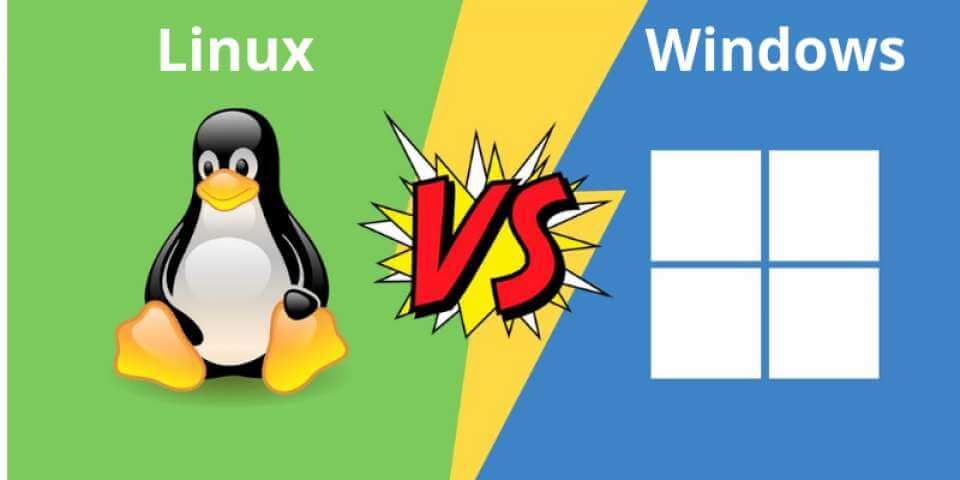
    Windows Vs Linux, Which Is The Best Operating System?

    So you are thinking about getting yourself a new computer system, right? But the thing is you do not which operating system to go with.

    This may have probably gotten you confused since you cannot decide on the one you will be choosing. In this case, the best option will be to compare the two operating systems side by side before you make a final decision.

    In this article, we take you through the two operating systems so that our readers can make an informed decision on the kind of operating system that you think will be best for you. The ultimate decision will however come down to you.

    So without wasting much time, let us get down to business.

    Before we get started, however, we need to know exactly what each operating system is. 

    Window Operating System

    Windows operating system was first released in 1985, the Windows operating system was created by Microsoft, which is owned by billionaire Bill Gates.

    It now has the largest user base in the world as of today through a series of updates over the years since its inception. The updates all come with their unique graphic interface which allows the users to view their files and carry out their work.

    Most computer systems today operate on the Windows system which was designed to work on the x86 hardware.

    The current update in the windows operating system lineup now is Windows 10, which was released after the Windows 8.1

    Linux Operating System

    This operating system was created in the 1990s, by a man known as Linux Torvalds. It is based on the UNIX platform and allows its users to modify its code to create different versions of it.

    Versions created by users can even be sold or used by them. They are also regarded as the best choice for setting up servers. Due to this, some web pages are served on the internet via systems that are backed by a Linux distribution. Linux is also commonly used in personal computers and others like mobiles and consoles.

    So now, let us look at them side by side    

    Price And License

    The majority of the Linux operating system and its library are open-source and free to the public to use and modify.

    There are also some distributions of Linux that are paid for and comes with additional support.

    Microsoft Windows however comes with the Microsoft license. This does not allow users of the operating system to get access to the source code of the OS, which means that users cannot make any modifications to the operating system as they wish. The license is priced between $70 and $200.

    Usability

    The Linux operating system has revamped the usability level of the operating system through the years.

    Its installations and other setups have been made much simpler over the years through frequent updates and this has enabled almost all kinds of people to operate the operating system.

    Windows on the other hand normally come pre-installed on most computer systems due to its dominance on the technology market.

    There is a 90% chance that the new computer you were thinking of buying already has a Microsoft Windows operating system installed on it, which means you shouldn’t even be reading this (dude, that’s a joke. Read on).

    Due to this dominance, many computer users are used to the Windows interface and there are even some people who have not seen how a Linux interface looks like before. Windows is also very easy to use.

    Support

    Linux boasts massive online support due to its huge user base around the world. Support is provided by the Linux community through various forums and websites.

    Windows has a support base that can be accessed easily through integrated and various online dedicated websites as well as videos which can help people when they can encounter a problem.

    Speed

    In terms of speed, Linux conquers Windows easily. Linux minimizes ‘bogging’ when many processes are being run at the same time. Defragmentation is no longer visible in Linux.

    Windows can get slow sometimes to the extent that it becomes very frustrating. This can happen when many apps are running at the same time     

    Privacy

    Windows has now become much focused on advertisements, although users can opt-out of this. Windows also seem to know the things that happen on your computer through the OneDrive and Cortana analysis.

    Linux however considers the privacy of its users as it comes with built-in encryption that provides users with security from third-party applications.

    Security

    Linux is more secure compared to Windows. This does not mean that there will be no attacks on the operating system as attack vectors have been discovered before. However, it is much easier to resolve such issues on Linux than on Windows.

    Reliability

    Over the years since its inception, Linux has proven to be much more reliable than Windows through its system security, process management, and uptime. Windows on the other hand have not been able to maintain its reliability quotient over the years.

    Gaming

    When it comes to gaming, windows wins by a wide margin. There are many gaming clients which can be accessed by windows users to enable them to play video games.

    Linux is now making its way up the gaming ladder and has a long way to go.

    • Conclusion

    From the comparison above, readers can make an informed choice for themselves as to the operating they think is better for them.

    Both operating systems have areas where they best the other so a careful decision will be needed when making the final choice.

  • The Different Types Of Computer Monitors

    The Different Types Of Computer Monitors

    A computer system includes a monitor, system unit, keyboard, and mouse. These make up the main components of the computer system. If one of these is missing, then there will be no ‘computer’.

    Each part plays a crucial role in bringing the whole system to life. However, you can still have a ‘computer’ as long as you have a system unit and a monitor.  For today’s article, we will be looking at the different types of computer monitors.

    Having a good monitor to display what you do on your computer can be very helpful and make things easier.

    What Is A Computer Monitor?

    A monitor is the part of the computer system that displays information to the user. Or you can simply put it as a part of the computer system that shows the user what the computer is doing.

    So now let us look at the different types of computer monitors.

    LCD Monitor

    LCD is short for ‘Liquid Crystal Display’ and it is made from liquid crystals. This monitor is widely used today than all the other types of computer monitors. The LCD uses less space and consumes less power as well.

    It also produces less heat. They are much thinner and very light in terms of weight as compared to the CRT monitor. They are also very easy to move around. Due to its consumption of less power, it can provide better graphics and a brighter screen display.

    LED Monitor

    LED stands for ‘Light Emitting Diode’. This is one of the latest innovations in computer display on the market together with the LCD monitors and plasma monitors. The LED is a monitor that is slightly curved and uses a light-emitting diode to backlight the screen. They can also be flat panel displays.

    The LED is brighter and has a 4K resolution compared to the other monitor types. Due to this, it is ideal for usage in the daytime. They also use lesser power than the LCD monitor and are widely used by video gamers who play high-demanding video games. The LEDs produce images that have higher contrast and vivid colors. It is also very durable.

    OLED Monitor

    Organic Light Emitting Diode is made from organic materials such as carbon, wood, plastic, and polymers. These components are used to an electric current to light. The OLED is one of the latest display technologies available.

    They can be thinner and have high contrast ratios than the LCD monitor. They are best for watching movies. They have wide viewing angles with great picture quality and outstanding contrast levels. They are also bright.

    Plasma Monitor

    This monitor is made of plasma technology and it is also one of the latest monitor technology available. In the plasma monitor, the cells are filled with electrically charged ionized gas. These cells are what give the monitor its ‘plasma’ name.

    The cells illuminate the tiny fluorescent light that creates the image pixels. Each pixel has three fluorescent lights that look like a tiny neon light. The plasma produces a superior contrast ratio.

    The plasma monitor is also slim and flat and can cut down on image distortion as well as glare. However, plasma monitors are heavier in size and consume more electricity than LCD monitors.

    CRT Monitor

    CRT stands for ‘Cathode Ray Tube’. This monitor that came out decades ago is not really in use anymore although you can still get some to buy if you need it, albeit a second-hand version.

    They are very heavy than the other monitor types and are difficult to move around easily from one place to another. They also require more space than the other monitors and they consume a lot of electricity as well.

    CRT monitors fell out because manufacturers had to transition along as the world was changing with the technological advancements that were happening.       

    Types Of Color Displays

    There are several types of color displays in computer monitors and they are as follows.

    Monochrome

    The monochrome is also called ‘Single Color Display’ it displays data on the screen in black and white.

    Gray-scale

    The gray-scale display is similar to the monochrome display. However, it displays data in gray shades instead of black and white. They are mostly used in portable laptops and hand computers.

    Color

    This display shows data with an adjustment of RGB radiations. They can display graphics in high resolution like 4K

    Conclusion

    These are the 5 types of computer monitors that we have at the moment. Each monitor is suitable for different settings according to the needs of the user. As you now know of the different types of computer monitors out there, we feel like this article has been really helpful. Do not forget to follow our social media pages for tech stuff.

  • Comparing An HDD To An SSD

    Comparing An HDD To An SSD

    Everybody who has owned a computer before obviously knows one or two things about the hard disk drive.

    The hard disk drive is the main storage component of the computer. This is where almost everything on the computer is stored.

    From the personal files to the operating system and boot files, everything is stored on the hard disk drive.

    There are two types of storage drives now. There is the traditional hard disk drive which almost everyone knows about, and then there is the SSD or solid-state drive.

    The two do the same job on the computer but each of them has its pros and cons. We will be comparing the two in this article.

    HDD

    The HDD is a storage device that is resident in the computer. It uses spinning disks inside where the computer data is magnetically stored.

    It has an ‘arm’ and ‘heads’ that are used for the writing and storing of data on the disk inside the computer.

    The arm moves the heads over the disks when trying to access different forms of data.

    They are also to be a legacy technology since they were made a long time ago and were there before the SSD came along.

    The HDD is not expensive compared to the SSD. There are two sizes of the HDD. The 2.5” one is normally found in laptops while the 3.5” ones are normally found in desktop computers. HDDs are normally used for storing pictures and videos for years as a backup.

    SSD

    The solid-state drive got its name because, it has no moving parts in it, unlike the HDD. The data in the SSD are stored in integrated circuits.

    The SSD is also much faster than the HDD because it does not have any moving parts that need to be startup before the computer loads.

    However, the SSD is much more expensive than the HDD according to the amount of storage in question. The prices have however begun to drop as of late.

    So Now Let Us Start Comparing the Two. The HDD vs The SSD

    Speed

    The SSD has become more popular in recent times due to the speed it has over the HDD. The SSD is much faster than the HDD because it uses electrical circuits and has no moving parts.

    Due to this, the time uses to start the computer up or open apps as well as do heavy work like playing games.

    For example, an SSD from Intel with a storage space of 512GB will be about 10x faster than an HDD with the same storage capacity in reading data and about 20x faster in writing data.

    The faster speed of the SSD enables it to perform better, especially in terms of logging as well as opening apps.

    Capacity

    When it comes to the sizes of storage space, SSDs can be had in 120GB to 4TB storage sizes.

    HDD on the other hand can be had in 250GB to 14TB storage capacities. HDD also wins when it comes to matching the prices of the device to the storage sizes although SSDs are dropping in prices. Soon, the price will not be a comparison point anymore.

    Reliability

    SSDs tend to be more reliable than HDDs when it comes to the reliability of the data stored. This is because SSDs cannot be affected by vibrations, falls, and any other thermal issues.

    Power

    SSD uses less power than HDDs do. This results in the battery having a longer lifespan since the device with SSD loads much faster compared to a device with an HDD.

    HDD on the other hand makes use of more power due to the spinning disks that move when the computer is turned on.

    Gaming Experience

    SSDs are suitable for people who use their machines to game a lot since the SSD can read and collect data much faster.

    Video games come with a lot of assets such as high-resolution textures, audio, and a lot more.

    These requirements will normally need a bigger and faster storage drive that can process everything quickly.

    HDDs on the other hand are not that fast as compared to SSDs and this makes them not suitable for gaming, especially video games that come with high demands. 

    From the above points listed, we can see that the SSD is much better to use compared to the HDD although they are more expensive than the HDD.

    SSD prices are currently dropping. However, they are still expensive at the moment. If you are looking to choose a storage device for your computer, we would like you to look at the pointers above and choose the one that suits you best.

    Remember, your budget must be considered as well. HDD is fairly good if you are someone who takes good care of his machines and prevents it from dropping frequently.

    That was all on the storage devices for today. We hope it was helpful.

  • How To Recover Permanently Deleted Files From Computer

    How To Recover Permanently Deleted Files From Computer

    You just accidentally deleted your important file and looking at how to recover the permanently deleted files from your computer? Then this article is definitely for you.

    We all delete unwanted things from our computers from time to time. We sometimes do this to free up space on the computer when the storage space is running out.

    However, there are times when we could accidentally delete some files. This can happen without knowing that we have deleted the files until we search and cannot find them.

    Such a situation can be very problematic if the deleted files are critical, especially when no backup has been made.

    However, there are some ways to retrieve the files that have been accidentally deleted. We will be looking at how you can recover your accidentally deleted files with ‘EaseUS Data Recovery Wizard software and other methods.

    Here Are Some Of The Ways Through Which You Can Recover PermanentlyDeleted Files

    Recycle Bin

    One of the easiest ways to retrieve your deleted files is to look in the recycle bin. If you are the kind of person who hardly empties the recycle bin, then there is a good chance that the accidentally deleted files are in there. All you have to do is 

    • Open the recycle bin and look through for the files you want
    • After you find it, right-click on it and then click on ‘restore.’
    • doing this will restore the deleted file to where it was deleted from 

    Recovery software

    However, if you are like me, who regularly cleans out the recycling bin, you may not find the files there if the files were not deleted recently.

    In this case, you will need to retrieve the files with the help of third-party software. We will be using the ‘EaseUS Data Recovery Wizard software.

    This recovery software was created with some advanced algorithm technology, although it is still straightforward to use.

    It has been relevant in the technology market for more than due to its efficiency in recovering lost data. Follow the steps below to see how you can use the software to recover your data.

    1. First of all, you will have to download the software. It is available for both Windows and Mac operating systems. You can download by searching the name of the software on Google with ‘download’ added to it. After downloading, install the app. 
    2. After installing and opening the app, you will have to choose the source you want to retrieve the files. It could an external storage device or the hard drive of your computer. After selecting the location where the files were deleted, click on the scan ‘button.’
    3. Now, wait for the scanning process to complete. After it has finished scanning, you can then look through all the files it found and then choose the ones you need. 
    4. After choosing the files you need, click on the ‘recover’ button, allowing you to save the selected files to another location. Now click on ‘ok.’

    Note: you should make sure not to save the recovered data back to the location where you initially them. It is advisable to keep them on a different drive. You will overwrite the files if you recover and save them directly to the location you accidentally deleted them from.

    Restoring Data From The Previous Version

    You can also recover the deleted data by using the free ‘backup and restore feature in windows. You can use this if the deleted file is not in the recycle bin and you do not want to use third-party software.

    Windows 7 

    1. Click on ‘start’ and then go to the folder where the deleted files had been.
    2. Now, right-click on the folder and then click on ‘restore the previous version.’
    3. A list of available previous versions of the deleted files will be shown to you, along with their times and dates. You then choose the understanding that you want and then click on ‘restore’ to get the files back.

    Windows 8, 8.1, 10

    1. Navigate to the folder where the deleted files were kept
    2. Now click on the ‘history’ button.
    3. windows will show you the most recent history of the folder to you
    4. Select the one that you need and click on ‘restore.’

    Conclusion

    So in this article, we went through how to Rrcover Permanently Deleted Files From Computer. However, it is advisable to always look through your recycling bin before you completely clean out each time since you could have accidentally deleted a file.

    You can avoid having to go back and look for them. However, if you have already deleted them, you can always refer to this article to help you get the files back, you can also click here to learn how to remove pre-installed app on your windows 10 . 

  • Comparing Laptop Computers And Desktop Computers

    Comparing Laptop Computers And Desktop Computers

    Laptop computers have become very popular in the last decade. Laptops have surpassed desktop computers in terms of patronage.

    However, that does not mean that desktop computers are not in use anymore. That is quite the opposite. Desktop computers are still very much in use due to some advantages they have over laptop computers.

    Desktop computers are still used in companies by employees who do not need to go around with their work but are always working at a desk. Although laptop computers have a lot of advantages over desktop computers, they are not enough to fully dethrone the desktop.

    We shall try to compare the two in this article and see which type of computer comes out on top.

    Size

    We all know that a laptop computer consists of everything that you will need in a computer in its casing. A desktop computer on the other hand has different components that must all come together before you can have a ‘computer system to operate.

    A laptop takes up less space depending on the type while a desktop computer will even need a table or desk. This makes the laptop more portable than the desktop.

    Range

    Laptops can be grouped into different types according to the need that it addresses. These are ultra-portables, media powerhouses, gaming laptops, or budget laptops. 

    The desktop computer however cannot be grouped since an upgrade can be carried out on a desktop at any point in time.

    Energy Use

    Laptop computers are known to consume way less power compared to desktop computers. Desktop computers use a lot of power but are not that high. Laptop computers also have a low running cost compared to desktop computers.

    Performance

    The majority of laptop computers can match the power of a desktop computer. Most mid-range laptops have features that allow them to compete with desktop computers. In terms of performance, we will need to break it down and take a look at some key points.

    CPU

    This is the central processing unit. For example, i3, i7. or AMD. There are generations in the processor family. The recent generation processors are always faster than the previous ones.

    • CPU frequency

    This is normally referred to as the speed of the processor and it is measured in gigahertz.

    Storage

    The storage capacity refers to the amount of data that the computer can hold. SSDs or solid-state drives are much faster than HDD or hard disk drives. There is a variation in terms of storage sizes. SSDs are also sometimes known as flash drives.

    Memory

    The memory is also known as the RAM. This is the temporary storage used by computer programs when they are opened and running. 4GB is now considered to be low for both laptop and desktop computers while having 16GB is considered high enough. 8GB is also considered fair enough.

    GPU

    This means the graphic processing unit. This is where the display of images and videos is all taken care of by the computer. Some computers even have a separate graphics card that helps to reduce the amount of time that it takes to load images and videos.

    Some computers however have the graphic card incorporated with the motherboard.

    Now let us get back to the main comparison.

    Peripherals

    Laptops normally come with all components built in together. You can still connect external parts to use with It although that is not necessary unless you want to be using the laptop as a desktop computer.

    Desktop computers on the other hand come with different components that all need to be assembled before you can have a ‘computer’

    Software

    Laptops can run full versions of the Windows operating system and some can even run Linux. Through the use of some software like ‘Parallels Desktop for Mac,’ you could have two operating systems on one machine.

    Some laptops can also be used to run the Windows 10 S mode, which is a more powerful and secure version of Windows 10.

    Upgrading

    One notable drawback of laptops is the fact that they cannot be upgraded easily. This is due to their slim design which may leave no reason for adding upgrades.

    Some upgrades that are allowed will require you to go to the shop of a technician to get it done.

    Desktops on the other hand can be upgraded without much problem. Most desktop computers can be turned into powerful gaming machines that can be used to play almost any video game out there by adding various upgrade components to them. 

    Conclusion

    Through the above similarities, we get to see why the laptop computer has overtaken the desktop in terms of popularity. Laptops are portable, which makes it easy for them to be used almost anywhere.

    We hope this article was insightful.

  • Flagship Samsung Phones To Choose From In 2023 + (Prices In Ghana)

    Flagship Samsung Phones To Choose From In 2023 + (Prices In Ghana)

    Are you looking for Samsung phones and prices in Ghana? then this article is for you.

    Keeping track of the lineup of all mobile devices released by Samsung phones and their prices especially when you want to get yourself one of them can be one hell of a job.

    Almost anyone can mention all the lines of smartphones released by Apple, but the same cannot be said about its biggest rival, Samsung, which has various models that cater to almost all price ranges.

    Although there are other android brands like Infinix, Tecno Itel, and more but Apple phones are always compared with Samsung phones.

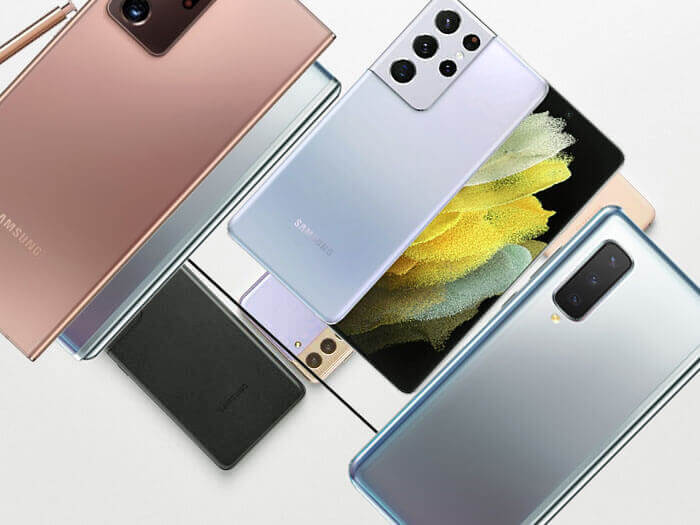
    If you are trying to get your hands on the latest Samsung flagship smartphones, we have compiled some of their latest releases for the year 2021 together with their prices right here.

    Galaxy Z Fold 2

    samsung galaxy z fold 2

    This Galaxy Z Fold 2 was released on September 18, 2020, and is the successor to the Samsung Galaxy Fold. The new Galaxy Z Fold 2 comes with a 6.3-inch front display, while the folding display has a sizable 7.6-inch.
    It has a refresh rate of 120Hz.

    The new Galaxy Z Fold 2 has a durable internal display that is made of Ultra-Thin Glass. This new device comes with a snapdragon 865 chipset and 12gig RAM, and 256gig worth of

    Storage Space

    Taking high-quality pictures with the new Galaxy Z Fold 2 would not be a problem as it comes with a 12-megapixel primary sensor, another 12-megapixel for ultra-wide, and a further 12-megapixel for telephoto with 2x optical zoom.

    It has a battery capacity of 4.500Mah, which is slightly higher than the Galaxy Fold. The new Samsung device is offered in two color flavors, mystic black and bronze.

    Price Of The Samsung Galaxy z Fold 2 In Ghana

    The Samsung Galaxy Z Fold 2 is undoubtedly one for the upper class as it comes with a price tag starting from GHS 5,729.26 ($9,999) to GHS 8315.75 ($1,450), which seems to match its abilities and specs.

    Samsung Galaxy Note 20 And Note 20 Ultra

    Samsung galaxy note 20

    Samsung has also unveiled the newest models in the long Galaxy Note lineup. The latest models are the Note 20 and Note 20 Ultra.

    Note 20 comes with a 6.7-inch flat FHD screen, while the Note 20 Ultra ups that further to the 6.9 Quad HD curved screen.

    The Note 20 Ultra also has a refresh rate of 120Hz, a feature that the company did not offer on the minor Note 20.

    It does not come with a memory card slot, and this can be hard on the Note 20 Ultra for those that like to keep a lot of stuff on their smartphones.

    On the power side, both mobile devices fast charge at a maximum of 25W, with the Note 20 having a 4.300mAh battery while the Note 20 Ultra gets a slightly higher 4,500mAh battery.

    The Samsung Galaxy Note 20 comes with a plastic back while the Note 20 Ultra retains the glass and metal build, standard on most flagship Samsung mobile smartphones.

    Both models also have Gorilla Glass 5 and Gorilla Glass Victus, respectively.
    The Note 20 comes with 8GB RAM and 256GB storage space, while the Note 20 gets 12GB RAM and 256GB storage space that can further upgrade to 512GB via the memory card slot provided.

    Both models come with an Exynos 990 chipset, while some Note 20 Ultra versions get a Qualcomm Snapdragon 856 chipset.

    The two models come with Android 10, which can be updated to Android 11.

    5G capability is also one of the newest features that come with the Samsung flagship smartphone models.

    Samsung unveiled both models in August 2020.

    Of course, all these do not come cheap as the Note 20 has a starting price tag of GHS 5,729.26 ($999), with the Note 20 Ultra starting at GHS 7,449.76 ($1,299).

    Samsung Galaxy S21 And S21 Ultra

    someone holding galaxy s21 and s21 ultra
    Photo Credit: GSMARENA

    The latest flagship models in the Samsung smartphone lineup are now the Galaxy S21, S21+, and S21 Ultra. The models come with either an Exynos 2100 chipset or a Snapdragon 888, depending on the destination region.

    Samsung has also decided to give each variant of the S lineup different RAM and storage options.

    The new S models get an updated design with a contour-shaped camera.

    The displays of the new S devices come with Gorilla Glass Victus, and it supports adaptive refresh.

    However, the new S models do not offer an option for additional storage space, which means you can insert memory cards as is possible on the Note 20 ultra.

    The S21, which is the entry-level phone of the S line up is the smallest among them. It has a 6.2-inch FHD+ flat screen and a plastic back.

    However, it does not lack in its camera setup as it comes with a 12-megapixel f/2.2 ultra-wide, 12-megapixel f/1.8 wide with an OIS and a whopping 64-megapixel telephoto f/2.0 with an OIS and three times optical zoom capability.

    It also has a 10-megapixel front camera. The S21 comes equipped with a 4.000mAh battery that can fast with 25W. Storage space options are 128GB to 256GB and 8GB of RAM.

    The S21+ has a larger 6.7-inch FHD+ screen and a flat panel with a back made of glass instead of plastic.

    This phone comes with the same camera specs as the entry-level S21 and the same storage options, and 8GB RAM.

    It, however, has a larger 4.800mAh battery as compared to the S21’s 4.000mAh battery.
    The S21 Ultra is the ultimate flagship model with a 6.8-inch WQHD+ curved display.

    Thinking of a refresh rate? don’t worry, this phone supports a refresh rate of 120Hz at the highest resolution. This phone has a 108-megapixel sensor, 12-megapixel ultra-wide, and a further two 10-megapixel telephoto with 3x and 10x optical zoom capabilities.

    The Galaxy S21 Ultra also offers a 100x space zoom and has a laser autofocus module present.

    For people who love selfies, the S21 Ultra will take you to the next level with a 40-megapixel front camera for all your selfie needs.

    The S21 has a large battery capacity of 5.000mAh and comes with storage options of 128GB, 256GB, 512GB, and 16GB of RAM.

    Price Of The Samsung Galaxy S21 And S21 Ultra

    Pricing for these models is no joke, just like their advanced features. The S21 starts at GHS 4,582.26 ($799); the S21+ begins at GHS (5729.26) $999, while the flagship s21 Ultra starts at GHS 6,876.26 ($1,199).

    You can also read our article on how to recover data from a damaged android phone.

  • Various MTN Ghana Data Bundles

    Various MTN Ghana Data Bundles

    MTN Ghana is probably the most popular telecom company in Ghana. The company can boast of having more subscribers in the country than any other telecom company.

    Having a lot of subscribers means having a juicy and attractive call and data plan to keep that huge number of subscribers happy since all these people require the internet to work or to do some research.

    Some of these people could be social media content creators or businessmen who make great use of the internet in their various businesses.

    Some of these people are also students who need to use the Internet for their various school projects and research.

    And then you have people who are addicted to all the social media sites out there. These people visit social media sites daily to keep up with all the latest trends that are showing up there.

    In today’s article, we will be looking at the various data bundles that are offered by MTN Ghana.

    You may know of some of these and may not know of others, so kindly read through.

    There are several main categories of bundles available on MTN, and they are midnight bundles, basic bundles, kokrokoo bundles, social media bundles, video bundles, and turbonet broadband bundles.

    Let us now take a look at each of them

    1. Basic Bundles

    The basic bundles are probably the cheapest offered by MTN. however, they are also the lowest.

    • 50pesewas gets you 23MB
    • GHS 1 gets you 46MB
    • GHS 3 gets you 461MB
    • GHS 10 gets you 943.40MB
    • GHS 120 gets you 12GB
    • GHS 399 gets you 205GB

    2. Midnight Bundles    

    The night bundles can be used at night only from 12 midnight to 5 am.

    • GHS 1 gets you 2.74GB
    • GHS 3 gets you 5.33GB

    3. Kokrokoo Bundle

    This is for people who mostly browse the internet at dawn and one could select his preferred data by entering the amount he wants. The bundle lasts from 4 am to 8 am.

    • GHS 1.09 gets you 400MB

    4. Social Media Bundle

    This bundle is designed for heavy users of social media sites such as Facebook, WhatsApp, Instagram, and Snapchat. The data in this package does not expire.

    • GHS 1 gets you 94.34MB
    • GHS 5 gets you 471.70MB
    • GHS 10 gets you 943.40MB

    5. Video Bundle

    This package is designed for people who stream videos online from places like YouTube a lot.

    You can also choose the bundle you want by entering your preferred amount. The bundles in this package also do not expire.

    • GHS 1 gets you 94.34MB
    • GHS 5 gets you 471.70MB
    • GHS 10 gets you 943.40MB

    6. Turbonet Broadband Bundle

    This package is designed for people who use MTN Turbonet broadband services. To use this data package, you must have the MTN Turbonet broadband device which will then allow you access to it.

    Once you have it, then you will be able to use this data package.

    • GHS 20 gets you 5GB
    • GHS 40 gets you 10GB
    • GHS 75 gets you 20GB
    • GHS 120 gets you 45GB
    • GHS 175 gets you 90GB
    • GHS 240 gets you 225GB
    • GHS 395 gets you 550GB

    7. Mashup Bundles

    There is also the mashup bundle that ranges from GHS 5 and GHS 10. These bundles normally last for a week and come with a combination of data bundles and minutes of airtime.

    The higher the airtime that one chooses according to the package selected, the lower the data that comes with along with it.

    Conclusion

    So in case, you did not know about all the data bundles that were available on MTN Ghana, well, here they are.

    These data bundles by MTN Ghana are probably some of the best in the country at the moment.

    However, you will have to purchase and use them yourself and then compare them to those of other networks to draw your conclusion. The fact however remains that MTN Ghana is widely used in Ghana.

    For more MTN-related articles, you can check out MTN call packages, how to make free calls on MTN, how to check your MTN registration details, and how to withdraw MTN mobile money from ATM.

  • Various Types Of Laptop Computers

    Various Types Of Laptop Computers

    Laptop computers have now become very common all over the world. Wherever you go, you are bound to see someone with a laptop computer there if the place is a school or any other place that deals with technology.

    You can see someone with a laptop at the bus stop. Many years ago, laptops were nowhere to be seen. Desktop computers were the craze at the time.

    However, one of the major drawbacks of the desktop computer was the fact that you could not move it around easily.

    Sure, you can move it from one place to another. But you would have to set the whole thing up again before you could use it.

    So to solve that problem, the laptop computer was unveiled. The laptop made it easy to move a computer around and even use it on the go, depending on the size of the laptop.

    Some recent laptops also come with touchscreen capabilities. Users can write on the screen with a touch pen or stylus, and even navigate the laptop without the use of the keyboard and mouse.

    This brings us to the main issue of today’s article, the different types of laptop computers.

    There are different forms and sizes of the laptop computer. Let us look at the types below.

    Notebooks

    Notebook laptops are also known as the ‘garden-variety laptop’. They weigh between 5 to 8 pounds and normally have a display of about 13 to 16 inches.

    This kind of laptop comes with sound cards and can sometimes have high-performing graphic cards that make them suitable for playing video games and other forms of multimedia. They are also very portable.

    Ultrabooks

    The Ultrabook laptops are much thinner than the notebook and normally weigh around 3 pounds, although they can have a screen size of around 15” big.

    Due preserve their battery life for longer, they are made to run on lower power processors. They also normally have a smaller keyboard.

    Netbooks

    Netbook laptops are small and mostly not expensive. They also run on processors that are not very powerful compared to that of other laptop sizes.

    They also have a smaller keyboard. Although you can get some of these laptops to buy, they are not very common anymore due to emergence of the iPads and tablets which sometimes have more performance features than laptops.

    Tablets

    Tablets have become very popular today to the extent that most people do not even know that they are a form of a laptop because they do not normally come with a flipping screen.

    They normally have small display screens and can even be used in performing professional work. There are many powerful tablet laptops that one can get but these are not cheap.

    Benefits Of Using Laptops

    • Laptop computers can do everything that desktop computers do and even do them much better.
    • You can use it to even manage your finances and perform other tasks such as sending emails or embellishing photographs.
    • You can also the majority of your online businesses almost anywhere that you find yourself or even during the process of the journey, especially if you are having a smaller size laptop.
    • You can also watch videos as well as share them. Their portability has made them very ideal for businesses and workers.  

    Choosing A Laptop

    In case you have decided to buy a laptop, you will have to make some research to aid you in choosing the most suitable one possible for you.

    Each laptop computer comes with an operating system already installed on it. Most laptops also come with several software that allows you to run various programs already installed on them.

    So you should check to see if the laptop you have pinpointed has the operating system and other software already available.

    You should also check how powerful the laptop is. If you plan to play video games, watch movies, and do other visual stuff a lot on the laptop, you will need to get a laptop that has a good graphics card as well as a very good sound card. You can check out our guide on choosing the best laptop.

    Conclusion

    It all comes down to your budget in the process of choosing a laptop. The laptop types mentioned above are suitable for different kinds of people.

    If you move a lot while taking care of your work, you can find something that suits you. And if you are the type that is always gaming, there certainly is a laptop that suits your style.

    Choosing the best laptop for you will go a long way to make sure that you can use it for a long time. 

  • Various Vodafone Ghana Data Bundles

    Various Vodafone Ghana Data Bundles

    People use data bundles all the time in today’s world. As long as you own a smartphone, you will surely be using data bundles for your browsing needs.

    To get the best data bundle packages available, you will have to join any telecommunication network in the country that gives the best data bundles with affordable prices and great call rates.

    We all know that this is what most customers look out for before they choose a telecommunication company. Of course, internet speed is also something that they look out for as well.

    Vodafone, being one of the major telecommunication companies in Ghana, has a strong claim when it comes to the requirements that influence a potential network customer.

    They have some of the best deals available on all that a person considers paramount in communications.

    Today, we will be looking at their various data bundles

    Vodafone has a wide range of data plans that are suited to almost everyone that uses the internet.

    No matter the kind of internet user you are, there is something available for you when it comes to Vodafone.

    Whether a heavy social media user or a light one. We are sure you will find what suits you in their array of data bundles.

    Let us go through the available bundles.

    Vodafone Hour data bundles

    This data bundle is available for people who normally like to download some movies or videos within the space of an hour.

    Customers get a big amount of data for a relatively smaller price with this bundle option. However, you will have to make sure that you use all the bundles within the designated timeframe or risk losing whatever will be left when the time is up.

    The hour data bundle comes in two flavors. There is the streamer bundle and the downloader bundle.

    • The streamer bundle gets you 500MB for just GHS 1.08 for an hour.
    • The downloader bundle gets you 2GB for just GHS 2.15 for an hour.

    If you want to subscribe to this data bundle, please dial *700# and then follow the prompts.

    Vodafone Daily Data Bundle

    This is a day-to-day data plan that customers can purchase. This may be because a customer is on a low budget and so cannot purchase a bigger data plan.

    Therefore they would go for this data plan due to the low price it comes with. Most casual internet users normally prefer this plan since they do not spend long hours online.

    The daily data plan comes in four different subgroups. The only disadvantage of this plan is the fact that customers will end up buying data daily which will cost them more in the long run than purchasing a longer data plan.

    Vodafone Starter Package

    The starter plan gives the customer 25MB for just 0.54pesewas and it stays valid for only a day. To subscribe, please dial *700*65#.    

    Vodafone Chat Packages

    The chat daily plan gives the customer 130MB for GHS 2.15and it also stays valid for only a day. to subscribe, please dial *700*24#.

    Vodafone Browser Max

    For GHS 3.25, customers will be given 550MB of data which will be valid for only a day. Dial *700*28# to subscribe to this plan.

    Vodafone Browser Lite

    Customers get 1GB of data for just GHS 5.4. However, this data stays valid for two days.

    Vodafone Weekly Data Bundle

    This is the data plan for people who want data that will last for more than two days. The disadvantage of this plan is that customers may see the prices as being expensive. Below are the subgroups under the weekly data plan.

    Vodafone Starter

    Customers are given 80MB for GHS 2.15 with no expiry date. Dial *700*27# to subscribe for this.

    Vodafone Downloader Lite

    With GHS 5.4, customers get 450MB which stays valid for 7 days. Dial *700*31# to get this plan

    Vodafone Streamer Max

    You will get 1.5GB for just GHS 10 with this plan. This plan lasts for 15 days and you can get it by dialing *700*59#

    Vodafone Browser Max

    This plan will cost you GHS 21.5 and gives you 4GB of data which will have to be used within 7 days. Dial *700*60# to get this plan.

    Vodafone Monthly Plan

    The monthly data plan is very common among the users of the Vodafone network. It is also divided into three sub-group plans.

    Vodafone Chat Packages

    This plan will get you 4GB for GHS 20 and it will stay valid for 30 days. Dial*700*34# to subscribe for this.

    Vodafone Downloader Package

    This plan will cost you GHS 50 and you will be given 10GB. You can get it by dialing *700# and then following the prompts.

    Vodafone Browser Package

    With GHS 108, you will be given 20GB, Please dial *700#

    Vodafone Jumbo Plans

    This is specifically made for people who use data heavily like business people who make use of the internet daily. This bundle is very expensive.

    Vodafone Jumbo Streamer

    This plan gives you 40GB for GHS 215 and it will last for 30 days. To get this data plan, please dial *700*48#

    Vodafone Jumbo Max

    This will get you a massive 100GB of data for GHS 320 for a month. Dial *700* and follow the prompts

    Vodafone Jumbo Optimus

    This plan gets you an even bigger 200GB of data for an equally bigger GHS 430 and it will stay valid for 30 days. Please dial *700* and then follow the prompts to get this data plan.

    Vodafone Night Bundle

    The Vodafone night data is for people who would want to download more movies over a few hours.

    This data is only available at midnight although it can be purchased at any time of the day. it comes in two subgroups, the night king 1 and the night king 2.

    Vodafone Night king 1

    The night king 1 gives you 2GB for just GHS 2.15 and will be valid from 12 to 4 am.

    Vodafone Night king 2

    The night king 2 gives you a bigger 7.5GB for GHS 5.40 and will also be valid from 12 to 4 am. Please dial *700#. You can also check out how to check your Vodafone number here.