Are you looking for easy steps to take you through how to have a blank name on X (formerly Twitter?) Or how do have an invisible name on Twitter?
Then this article got you covered. In this article, I will take you through how to make sure nobody sees your name on Twitter, making you invisible.
What we will be doing is to insert a unique character that will then make your display name appear blank on Twitter.
It doesn’t require any hacking or coding skills to have an invisible name on Twitter, and anybody can do this without any hassle.
There are so many reasons why someone might want to make their display name blank on Twitter.
I have been at that point before where I wish people wouldn’t see my username when I tweet, retweet, or message them.
I don’t know about you, but you might also have your reason for why you want to have a blank name on Twitter.
Twitter is one of the best places to get to know what is happening around the world. Twitter is where people visit to find correct and authentic news happening around their country and the world.
Even when people hear of a story on television or a website, they will also decide to visit Twitter and find out if people are talking about it before believing it.
Here Are The Things To Note If You Want To Have An Invisible Name On Twitter
Twitter won’t show your name. It will only be left with your username
People can still see your tweets, retweets, and like but can not see your name
If you are a verified user and you change your name, it will take another 30 days before you can change your name again, so if you are a verified user, you might first get to know this before you decide to make your name invisible on Twitter.
Now that you know what will happen when you make your username blank on Twitter, let’s dive into making sure nobody sees your name on Twitter, making you invisible on the social media app.
How To Make Your Display Name Blank On Twitter
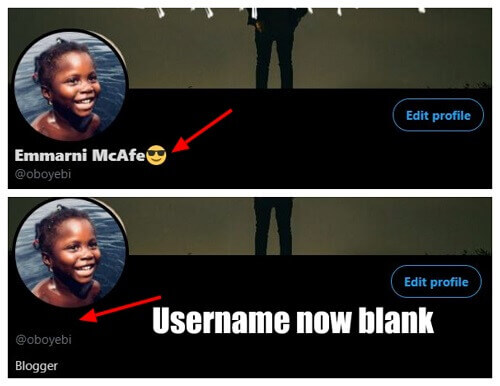
Visit twitter.com/your username. So my username on Twitter is @oboyebi, so in this case, I will type twitter.com/oboyebi.
Click on Edit Profile
Clear your username and type in this character ً
Click on Save Changes, and then you will see your username changed to blank.
Now you can browse, like, retweet, and post on Twitter without other users seeing your username on the app.
Images taking you through how to have a blank name on Twitter
Conclusion
Twitter is the number one source of legit news, and information and the best place to get entertained.
If you want to be invisible on Twitter, there is a way to go around it; this article takes you through making sure your display name becomes invisible on the Twitter app. When are you trying this trick? Let me know in the comment section below.
Let’s delve into how to activate dark mode on Snapchat.
If you’ve been enjoying the sleek look of dark mode on WhatsApp and want to replicate that experience on Snapchat, here’s a guide to help you navigate through the process.
Dark mode isn’t merely a cosmetic feature; it serves a practical purpose.
It was introduced to alleviate eye strain, especially when using your phone at night.
The blue and white lights emitted by mobile devices can interfere with sleep patterns and lead to discomfort, including headaches and other issues.
In response to this, developers across various platforms incorporated dark mode as an alternative to the standard screen.
Now, let’s walk through the steps to activate dark mode on your Snapchat app, enhancing your experience and reducing strain on your eyes, especially during nighttime use.
What Is The Dark Mode?
The Dark Mode feature, also referred to as Night Mode, is a functionality that enables users to alter the color scheme of the application they are using, transitioning it to a darker visual palette.
Widely prevalent across various apps and devices, this feature serves a practical purpose by facilitating comfortable usage during low-light conditions, particularly at night, without causing undue strain on the eyes.
Its implementation proves beneficial for users aiming to engage with their phones or specific applications before bedtime, contributing to a more conducive environment for restful sleep.
It’s noteworthy, however, that while Dark Mode has gained significant popularity, not all apps and devices incorporate this feature.
Surprisingly, some widely used applications have yet to integrate Dark Mode into their design, indicating that its adoption is not universal across all platforms.
How To Activate Dark Mode On IOS Snapchat
Snapchat, a dynamic social media platform renowned for its frequent introduction of innovative features, continues to captivate users with a constant stream of novel additions.
Among these enhancements are an array of filters and various features that users regularly encounter upon launching the app.
Notably, in May 2021, Snapchat introduced the Dark Mode feature, a significant addition for users operating the app on IOS.
Dark Mode provides users with the ability to seamlessly transition the app’s color scheme to a darker, more subdued palette, offering a visually comfortable experience, particularly during nighttime usage.
This feature aligns with the broader industry trend of incorporating Dark Mode options to enhance usability in low-light conditions.
IOS users now have the convenience of accessing Snapchat in Dark Mode, contributing to a more enjoyable and eye-friendly experience during nocturnal interactions with the app.
Follow the steps below to activate the feature on your Snapchat using IOS.
Go to your Snapchat profile
Tap on the ‘gear (settings) icon’
Scroll down till you see ‘app appearances’ and tap on it
Tap on ‘always dark’
This will activate the dark mode feature on your IOS Snapchat. So if you are using Snapchat on an iPhone or any other Apple device, then you can use the simple steps above to activate the night mode.
How To Activate Dark Mode For Snapchat On Android
Android users can also enjoy the Dark Mode feature on their Snapchat app.
Android, being the most widely used mobile operating system globally, ensures that such popular features are not exclusive to specific platforms.
While the official update incorporating the Dark Mode feature may not have been universally rolled out to Android devices, there is an alternative method for users to activate it.
By navigating to the Developer’s Mode settings and manually enabling Dark Mode, Android users can access this visually soothing feature on their Snapchat app.
This workaround allows users to benefit from the advantages of Dark Mode, enhancing the app’s usability in low-light conditions.
Despite the official update pending for Android, this method empowers users to proactively enjoy the benefits of Dark Mode on Snapchat.
Follow the steps below to get it done:
Go to your Snapchat app
Swipe down and then choose ‘gear’
Tap on ‘display’
And then tap on ‘dark mode’
Go to your phone settings and scroll down to ‘about phone’ tap on it
Choose ‘Software information’
Locate ‘build number’ and then tap on it 6 times in quick succession
A notification will then be sent to you about it
Input your password and code
Return to settings and tap on ‘developer options’
Scroll down and then tap on ‘Force dark mode’
With this, you will have the dark mode running on your Snapchat app.
Alternative Ways To Access Dark Mode On Android
In case you cannot go through all those steps or you are afraid of messing with the developers’ settings. There are apps that you can download to get the dark mode effect on any app on your phone. One of such app is known as the ‘Substratum’ app.
‘Blue Light Filter’ is another app that can be used for that purpose. Although this app does not add dark mode to your Snapchat, it will allow you to edit the harsh light when you are using the phone at night.
Conclusion
Absolutely, with the Dark Mode activated on your Snapchat app, navigating the platform during nighttime becomes a significantly more enjoyable and visually comfortable experience.
The subdued color palette reduces eye strain, providing a seamless and pleasant interaction with the app in low-light conditions.
Whether you’re capturing moments, exploring new features, or connecting with friends, the enhanced visibility and reduced glare offered by Dark Mode contribute to an overall more enjoyable browsing experience on Snapchat, especially during the evening hours.
I once received a message from a friend, and the question was, “Can I send a WhatsApp message without adding contact”?
The answer is yes, you can message someone on WhatsApp without having to save the contact first.
We all use WhatsApp since it is the most popular messaging app with so many updates and features that get its users stuck on the app.
However, we communicate on WhatsApp using our phone numbers, and before you message someone, the person’s number should be in your contact list.
But do you know it is possible to send someone a message on WhatsApp without storing the number?
Yes, it is possible, and this tutorial I am about to teach you works on both Android, iPhone, and pc.
There might be so many reasons why you would want to message someone on WhatsApp without having to save the number first.
For instance, I used to decorate cars, and anytime people bring their vehicle, after decorating it, I will have to take pictures of that car and send them to the owners.
If I work on 5 – 7 cars every week, I have to store 5 – 7 contacts every day, but with this simple trick, I can send messages to people without the need to save their numbers to my contact lists.
I don’t also know about you; maybe you want to have a conversation and don’t want to add the person’s number. You can also use these simple steps to send a message to the unsaved number.
How To Message Someone On WhatsApp Without Saving The Number
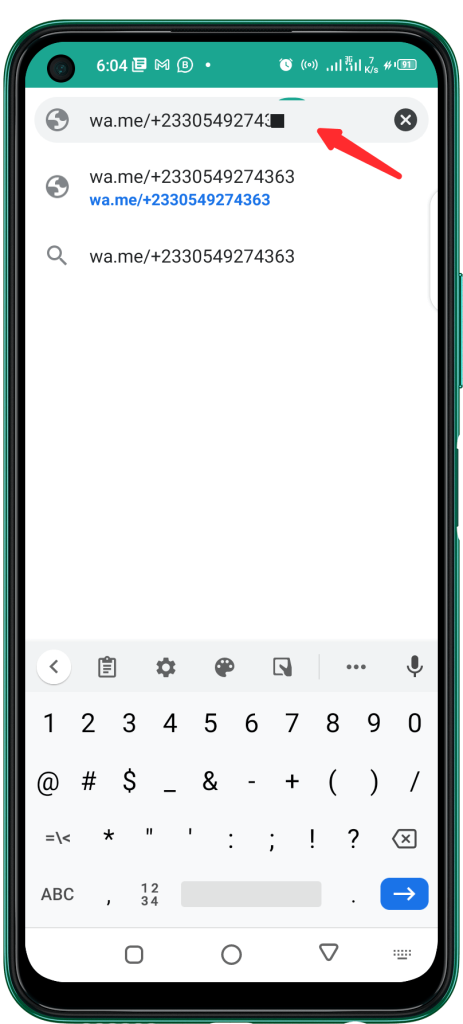
1. Open your browser and type www.wa.me/country code+phone number (which should look like this wa.me/+2330549274363).
2. If you want to message someone from Ghana, you will first type in their country code which is +233, and then, add their ten digits which is the number 0549274363.
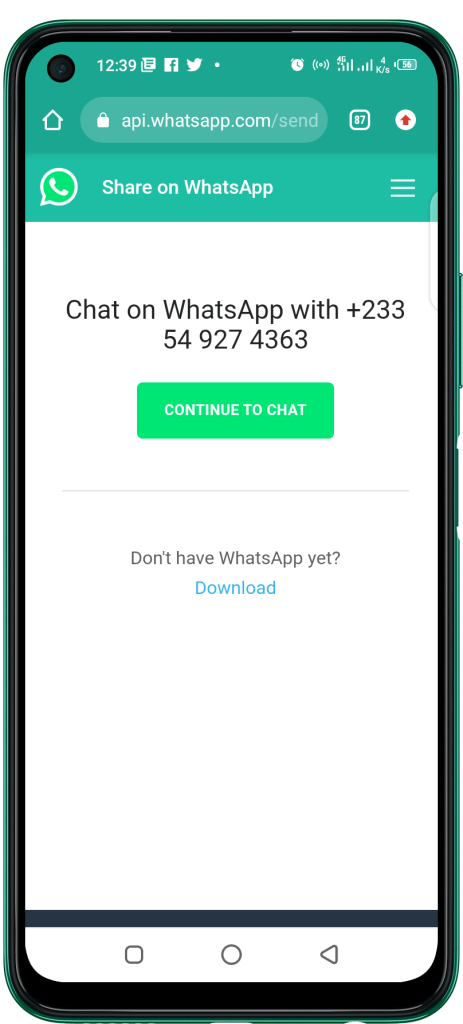
3. Now click on Open Chat or Continue To Chat, depending on the device you are using.
4. You will be redirected to WhatsApp, now you can send a message to the number, and he or she can also reply to you.
Conclusion
Now you don’t have to worry when you want to send a message to someone on WhatsApp as you can do that without having to store the number first.
In this article, we went through how to send a message to an unsaved number on WhatsApp.
WhatsApp has indeed become a global sensation since its inception, emerging as the most widely used personal messaging app across the world with billions of users.
The app’s journey to the top was solidified when Facebook acquired it for a whopping $19 billion, leading to a series of updates and transformations.
Over the years, WhatsApp has consistently outpaced its competitors, securing its position as the go-to messaging app for individuals worldwide.
However, this popularity hasn’t been without its challenges, as the app’s owners found themselves entangled in a controversy surrounding a new privacy policy.
This policy, specifically for the WhatsApp Business platform, raised concerns as it seemingly granted WhatsApp significant access to user information, potentially for targeted advertising on Facebook.
Despite the controversy, WhatsApp remains committed to enhancing user experience through regular updates and the introduction of new features.
Here’s a sneak peek at some of the upcoming features that will soon grace this beloved messaging app:
Emoji Reactions
WhatsApp is considering introducing emoji reactions, a feature familiar to users of other social media platforms.
This functionality allows users to respond to specific messages within a chat using a range of emojis.
This addition aims to streamline communication by providing quick and expressive responses, akin to the reaction feature on various messaging platforms.
Avatars
Another potential feature involves personalized avatars, allowing users to create digital self-representations.
While specific details are scarce, this feature could bring an element of personalization and amusement to WhatsApp, similar to Bitmoji on Snapchat or avatars on other social media platforms.
Display Profile Photo in Notifications: An upcoming update might include the display of the sender’s profile photo in system notifications upon receiving a new message.
Currently, notification previews show only the message text and the sender’s name. This enhancement aims to make it quicker and easier for users to identify the sender at a glance.
Multi-Device Support
WhatsApp is exploring the possibility of allowing users to operate their accounts independently on up to four devices.
This is a departure from the current system where the account is linked to a phone and can be mirrored on only one device.
With multi-device support, users could take video calls on computers or tablets and send messages from any connected device, offering greater flexibility in communication.
It’s essential to note that these features are either in the development stage or based on rumors, and their final implementations may differ from the descriptions provided.
Mute
Almost every user of the messaging app has people of groups that he or she would want to mute for a long time so that they do not have to see their messages again without deleting such contacts.
Due to this wish which Facebook may have heard about, the messaging app will be getting a new feature known as the ‘Always Mute’ feature.
It will be available for Beta users of the app on both Android and IOS who will want to mute a chat for as long as they want.
This option will replace the ‘1 year’ mute option. This feature was spotted a few months ago on the Android Beta 2.20.197.3 update.
Once this update is rolled out for all versions of the app, users will now be able to mute those annoying chats for eternity and just forget about it as if they had deleted it.
New Storage Usage
We always keep an eye on the amount of storage that has been used by WhatsApp on our smartphone devices.
A new storage section has been designed for the app and this was spotted on Android Beta v2.20.201.9.
The new update will improve the storage section while allowing users more visual cues to make the managing of the storage section much easier to handle.
Expiring Media
WhatsApp unveiled a feature in an update that allowed users to delete media that they had sent to people within a specific time frame, after which the media would be able to be deleted by the user.
It also unveiled a feature that made messages expire after a certain period. There is however a new feature in the works known as the ‘Expiring media’.
This new feature allows users to send media messages that will be deleted from the recipient’s device as soon as he or she leaves the chat page on the app.
This feature will not alert the recipient to the fact that the media message they received has been deleted from their devices after they left the chat. The media messages will just simply vanish from the chat.
Multi-Device
This is yet another amazing feature that will be coming to WhatsApp very soon that the messaging app’s large number of users have been waiting for.
The new feature was seen in development in Android Beta version 2.20.143. This new feature will give users the ability to clone their WhatsApp accounts on different devices.
For example, one Whatsapp account will be usable on a different device apart from the one on which it was initially installed.
The messaging app will question whether you would want to download the WhatsApp wallpaper app when you try to choose a default wallpaper.
To stay abreast of the latest features and improvements, users are advised to keep their WhatsApp app updated regularly. The future of WhatsApp holds exciting possibilities for enriched communication experiences.
So these are some of the great new features that will be coming to WhatsApp users very soon. All these features are in development to be rolled out for both Android and IOS devices.
knowing whether someone has saved your number in their contact list can be of interest. If you’d like, I can provide you with information or tips on the trick you mentioned. Feel free to share more details, and I’ll assist you accordingly.
WhatsApp, a widely used mobile messaging app, boasts billions of users worldwide. After acquiring the app for a staggering $19 billion, Facebook now owns it.
As the go-to messaging platform, WhatsApp offers an array of impressive features. From making voice and video calls to sharing media messages and documents, it allows users to stay connected in various ways.
Additionally, you can even track the location of your contacts on the map. In this article, I will guide you through the remarkable features of WhatsApp and explain how they work. So, let’s dive in.
Checkmarks In WhatsApp And What They Mean
The checkmarks in WhatsApp let the sender know whether his or her message has been received. One checkmark means that the message has been sent, but the recipient is not online or connected to the internet.
Two checkmarks mean that the message has been delivered to the recipient’s phone.
When you see two blue checkmarks, it indicates that your message was delivered and that the recipient has read it.
A red exclamation sign means that your message has not been sent, probably because you don’t have an internet connection.
There is an exception for the checkmark. You can have a double checkmark even though you see the recipient online for a long time after you sent the message.
This indicates that the recipient has turned off their read receipts when it occurs.
In this case, they will read your message, but there will not be a double blue checkmark. This is usually used by people who want to avoid replying to some messages.
Last Seen
You can hide the last seen on your WhatsApp by going to the settings menu, then going to account, and then privacy.
You can then switch the Lasts seen between everyone, my contacts, or nobody.
The WhatsApp app can also be linked to your Facebook account to directly send pictures and videos from your WhatsApp story to your Facebook story.
You can again back up your data to either the smartphone’s internal storage or you can back them up to your cloud storage.
Mute Chats
If you want to silence a group chat or individual chat, you can mute it. Open the chat, tap the contact or group name, and select “Custom Notifications.” From there, you can choose to mute the chat for a specified period.
Reply and Quote Messages
You can reply to a specific message within a chat by long-pressing the message and selecting the reply icon. This allows you to quote the message and provide context in your response.
Search Messages
WhatsApp allows you to search for specific messages within a chat. In the chat, tap the three dots in the top-right corner and select “Search.” You can enter keywords to find specific messages.
Pin Chats
For easy access, you can pin the conversations that are most crucial to you at the top of your list. Swipe right on a chat and press the pin symbol to accomplish this. Chats that are pinned stay at the top of the list.
Starred Messages
Certain communications can be “starred” for convenient access at a later time. Press and hold a message, then tap the star icon to accomplish this. Your starred messages are located in the chat settings.
Status Updates
You can share text, images, videos, and GIFs as status updates on WhatsApp Status, and they will vanish after 24 hours. On the Status page, you may see your contacts’ most recent status updates.
WhatsApp Web
You may use WhatsApp on your PC by using WhatsApp Web. In order to utilize it, launch WhatsApp on your phone, click the three dots in the upper-right corner, choose “WhatsApp Web,” and then scan the QR code located on the website.
Dark Mode
WhatsApp offers a Dark Mode theme that changes the app’s background to dark colors, which can be easier on the eyes in low-light environments. You can activate Dark Mode in the app’s settings.
Group Chats
You can create group chats in WhatsApp to chat with multiple contacts simultaneously. To start a group chat, go to the Chats tab, tap the new chat icon, and select “New Group.” You can add participants, set a group name, and manage group settings.
Voice Messages
WhatsApp allows you to send voice messages. Hold down the microphone icon in a chat, record your message, and release the icon to send it. The recipient can play the voice message by tapping on it.
Status Updates
WhatsApp Status is comparable to other social media networks’ Stories. As 24-hour-only status updates, you can share text, images, videos, and GIFs. Select “My Status” from the Status tab to create a new status.
WhatsApp Web
WhatsApp Web is a feature that lets you use WhatsApp on your computer’s web browser. To use it, open WhatsApp on your phone, tap the three dots in the top-right corner, select “WhatsApp Web,” and scan the QR code on the web page.
Document Sharing
You can send documents through WhatsApp. In a chat, tap the attachment icon and select “Document.” Choose a document from your device, and it will be sent to the recipient. WhatsApp supports a variety of document types.
Location Sharing
You may let contacts know where you are in real time with WhatsApp. Launch a conversation, tap the icon for the attachment, choose “Location,” and then select “Share Live Location.” The length of time that your location is transmitted can be customized.
Video and Image Sharing
You can send photos and videos to your contacts. In a chat, tap the attachment icon and select “Photo” or “Video.” Choose the media you want to send, add a caption if desired, and press the send button.
End-to-End Encryption
Because WhatsApp uses end-to-end encryption, messages are only read by you and the recipient. The content of your messages is private and not accessible to anybody else, not even WhatsApp.
End-To-End Encryption
In today’s digital world, where malware allows cybercriminals to spy on people, WhatsApp uses an end-to-end encryption system that makes it hard for third-party people to view your messages.
Calls
WhatsApp allows its users to make both video calls and voice calls with anyone irrespective of the country as long as the person has WhatsApp installed.
However, WhatsApp Web has yet to get the video call feature. You can, however, do video calls on WhatsApp web through the messenger room.
Open your WhatsApp web and log into your account. Click on the three-dotted icons and select ‘Create a Room.’ A message will appear asking you to continue on Messenger. Click on it You will be allowed to create a room and then start your video calls.
Not to mention the ability to transmit and receive documents, movies, and images. If you want to take the greatest photos to send to your loved ones, be sure to read our post on the top Android camera applications. You can also use WhatsApp to know if someone has stored your number.
The rapid advancement of technology has ushered in a new era where a vast majority of individuals own various technological devices, whether it’s a smartphone, tablet, or other gadgets like iPod music players.
These devices, connected to the internet, have given rise to a plethora of messaging apps that facilitate communication and connection with people from around the world.
The beauty of these messaging apps lies in their compatibility across a range of mobile devices, be it Android, iOS, or Windows-based.
This universal accessibility allows users to chat and stay in touch with friends and family, regardless of the operating system of their device.
Let’s explore some of the most popular messaging apps in the world today, each offering unique features and capabilities while fundamentally serving the core function of sending messages:
Facebook Messenger
This app is probably one of the most favorite messaging apps in the world. It is the messenger companion to the social media site Facebook and allows people to chat with one another.
All one needs is to have an account on Facebook. It has daily active users that number well into billions. Its design is unique to the operating system on which it is being used.
However, the functions are the same no matter the scenario. The Facebook Messenger app is also free to download for all platforms.
WhatsApp
The most famous and well-used messaging of them all is WhatsApp. This app has well over a billion users, and its download number on the app stores tells the story. It is also free to download, just like Facebook Messenger.
Facebook also owns WhatsApp. The app has grown from its early days to now, where it boasts several unique features.
Apart from messaging and sharing media, you can also use WhatsApp to make audio and video calls. It also does not bother its users with ads, which can be very annoying.
However, what makes this app the number one go-to messaging app is the simplicity and ease of use that comes with it.
Telegram
Telegram is a new app in the big circle of messaging apps. It can be easily integrated between computers and tablets.
The chats in Telegram are stored in a cloud server instead of being held on the mobile phone. You can then sync this across all devices that are using the Telegram account. The app has also become very popular.
Line
Line is a messaging app that has over 200 million active users. It is a free app and is very popular in Asian nations.
It also allows its users the ability to make both audio and video calls. This app also allows its users to play mobile games when they are not in a chatting mood.
Viber
With more than a 200million active users since 2003, Viber users have grown over the years.
It also allows users to send messages, media, and make calls. It is also free to download at the app store.
WeChat
WeChat is a messaging app that is widely used in the Asian country of China. It has several cool features that suit its country of use very well.
Users can shake their smartphones and discover people nearby with whom they can be friends. You can also do this by using the GPS function option. This app is also free to download.
Blackberry Messenger
Blackberry is possibly one of the oldest messaging apps in the world. We all remember when Blackberry smartphones measured how rich someone was before Apple and Samsung took over.
The Blackberry messaging app allows its users to do most of the things you can do on the other messaging apps on this list.
You can chat and share pictures, voice notes, and make calls as well. Although only Blackberry users were allowed to use the app some time ago, the app is now available for Android and IOS.
It also sets a timer on how long a media message sent to someone will stay on their mobile phones. Once the timer is up, the media disappears.
IMO
Many people may remember one app when you mention its name, although it has not gained the level of popularity that its counterparts have, especially with the younger generation. Its users can chat and make free voice and video calls.
Kakaotalk
This app operates similarly to WhatsApp, and the app is more commonly used in South Korea. It synchronizes the contacts on your smartphone automatically.
Users can also make fast video calls apart from the regular messaging that it comes with. It is also free to download and use.
Skype
Skype is the most widely used app for making video calls in the world. It also has an instant messaging tool that appeals to its vast number of users, which is also efficient.
There is also a professional appeal to Skype. You can download Skype for both your smartphone and your computer. You can also use Skype to transfer files.
Skype also offers a lot of emojis for people who hate to type long words all the time, and it is also free like the other apps on this list.
Signal
Signal is an open-source messaging app that prioritizes privacy and security. It offers end-to-end encryption, self-destructing messages, and voice and video calls. It has gained popularity for its strong stance on protecting user data.
Discord
Initially designed for gamers, Discord has evolved into a versatile platform. It offers text, voice, and video chat in servers, making it a popular choice for online communities and gaming groups. Discord has also gained popularity for its simplicity and reliability.
Slack
Slack is primarily used for workplace communication and collaboration. It offers chat channels, direct messaging, file sharing, and integrations with various productivity apps, making it a valuable tool for teams and organizations to streamline their workflows.
Snapchat
Snapchat is very popular with many people today due to its numerous filters that are great for taking pictures and making videos.
The app has gotten popular quickly, especially among younger people. It also comes with instant messaging that deletes when the user leaves the chat and allows video calls.
Snapchat is also free to download on all platforms. All the apps listed above are free to download on any mobile operating system and computer system. They all offer excellent instant messaging capabilities alongside their unique features.
Wrapping Up
These messaging apps may share similar features like text messaging, voice and video calls, multimedia sharing, and group chats, but each has its own uniqueness that sets it apart from the others.
Whether it’s WhatsApp’s ease of use, Messenger’s integration with Facebook, or Telegram’s focus on security, users can choose the app that aligns with their preferences and needs.
Remember, the messaging app landscape is constantly evolving, and new contenders may emerge as technology advances.
It’s essential to stay informed about the latest developments and choose the app that best suits your communication requirements.
In our earlier discussion, we explored the widespread use of the Internet on smartphones and portable mobile devices.
Recognizing the significance of a reliable mobile browser, we emphasized the need for a well-suited browser to enhance the internet experience on smartphones and portable devices.
We introduced you to a selection of top Android mobile browsers that cater to diverse browsing preferences.
Continuing our exploration of excellent options, let’s delve into a few more Android mobile browsers that can elevate your browsing experience.
Ecosia
If you prefer an environmentally friendly Android browser, then look no further than the Ecosia browser. It comes with all the normal features you will find in some privacy-themed browsers such as private browsing mode, bookmarks, multiple tabs, and the usual downloads.
Its usage feels a bit like Google Chrome because it uses the Chromium-based open-source project. One thing that makes this browser unique from all other browsers out there is the fact that about 80% of the money it makes is donated towards the planting of more trees.
Yes, we know that this is certainly not a feature of the browser, but it is certainly a great thing to do.
Ecosia is a great browser for those of you out there who are not always on the net surfing but still want a browser that delivers when it is called upon. Its tree donations are just an environmental bonus feature.
Chrome
Google Chrome is one of the most popular Android smartphone browsers out there to the extent that some smartphones and mobile devices come with the browser already installed on them.
It has some of the best Android features compared to other browsers on this list. Most people prefer to keep using this browser and sometimes do not even bother to download an additional one.
The browser has the ability to sync with the desktop-based Google Chrome browser. It has good integration with the Android operating system and features unlimited browsing tabs and a good design.
Users will have to choose between a total of four Chrome browsers and these are the regular Chrome, Chrome Beta, Chrome Canary, and Chrome Dev. Users are however advised to choose at their own risk.
Microsoft Edge
The Microsoft Edge browser is a very great browser that mainly competes with Chrome browser and Firefox browser in terms of functionality and usability. It affords the user the ability to sync passwords, bookmarks, and browsing history anytime you want to.
It also allows you to continue browsing on your desktop edge browser straight away from the mobile browser. This browser is also on the Chromium base project and can be accessed with a Microsoft account in case you do not have a Google account.
Naked
Now before you start getting any weird ideas, this is not an actual naked browser in the real naked sense. It is a simple-looking browser but it sure means business. It has sacrificed a lot of features found on other browsers but makes up for that with its speed and simplicity.
However, despite the simplicity, you still have access to the most important browser features like bookmarks, shortcuts, and your browsing history. Due to its stripped-down nature, websites on this browser load much faster than on other browsers. If you, however, want a browser with flashy designs and the sort, then we are sorry but this is not the browser for you. If you want speed and simplicity, then this is the browser for you.
Surfy
Certainly not one of the best-known browsers out there but it is a decent browser with some good features. It comes with the usual features of bookmarks and browsing history.
It also comes with features like ad-blocking features and themes. It also has a special feature in which the browser reads the website pages you visit. This will be of great help to people who may need to read a long page of text on a website but do not have the time.
Tor
This is one of the best-known browsers out there for people who value their privacy when they go online. The browser has a special feature whereby it connects to its proxy network which enables it to hide whatever you are doing online from your ISP as well anyone else that might want to snoop on you.
It does a good job of blocking people or sites that may want to track you aside from the fact that its web surfing speed is good. It also comes with a double layer of encryption.
Lynket
A rebranded browser that allows you to open links from almost any app in Chrome tabs, whether the app supports Chrome or not. It also includes webheads, just like you will find on the Brave browser.
This browser is ideal for people who normally multitask a lot as well as people who are always surfing the internet.
Kiwi
This is one of the newly released Android browsers you can get. It is also a Chromium-based browser just like some of the browsers on this list.
It loads web pages decently well and has great features such as ad-blocking, a night mode that also contrasts with AMOLED displays, a pop-up blocker, and protection against cryptocurrency theft.
The address bar of this browser can be found at the bottom side of the app, unlike the normal way in which the address bar is always found at the top of the app.
Mozilla Firefox
Firefox for Android is a feature-rich browser with a strong emphasis on privacy. It includes a private browsing mode, tracking protection, and the ability to install add-ons for customization. Firefox Sync ensures a smooth transition between devices.
Samsung Internet Browser
Samsung’s proprietary browser is optimized for its Galaxy devices but is available for other Android smartphones.
It features a clean interface, ad-blocking capabilities, and integration with Samsung services. The browser also supports various extensions.
Opera Browser
Opera stands out for its built-in features like a free VPN, ad blocker, and data saver. It provides a fast and efficient browsing experience.
Opera’s user interface is designed for simplicity, and its additional features cater to users looking for more than a standard browser.
Brave Browser
The Brave Browser stands out with a robust commitment to privacy and security. Equipped with built-in ad and tracker blockers, it guarantees a swifter and more secure browsing encounter, shielding users from intrusive elements.
One distinctive feature of Brave lies in its innovative reward system. Users opting to view privacy-respecting ads unlock a unique avenue for incentives, creating a mutually beneficial arrangement.
This approach not only fortifies privacy but also introduces a novel way to engage with online content while being rewarded for preserving personal data integrity.
DuckDuckGo Privacy Browser
DuckDuckGo is renowned for its commitment to user privacy, and its browser reflects this philosophy. It blocks hidden third-party trackers, provides a simplified privacy dashboard, and ensures secure browsing without sacrificing speed.
UC Browser
UC Browser is known for its fast download speeds and data-saving features. It offers a range of customizable settings, including themes and add-ons. UC Browser’s user-friendly interface and quick navigation make it a popular choice.
Puffin Browser
Puffin Browser sets itself apart with its cloud-based architecture, offloading some tasks to remote servers for faster loading times.
It supports Flash, has a virtual trackpad, and offers a theater mode for an immersive browsing experience.
Ghostery Privacy Browser
Ghostery focuses on privacy by blocking trackers and providing detailed insights into the elements on a webpage.
It offers a clear overview of the privacy implications of each site, empowering users to control their online tracking footprint.
Finding the perfect Android browser can significantly enhance your browsing experience on smartphones.
It’s fantastic that these browsers cater to a variety of needs and preferences. Remember, whether you prioritize customization, privacy, or seamless integration across devices, there’s a browser out there for you.
And the best part? Most of them are readily available for download on the Google Play store, making it convenient for users to explore and choose the one that suits them best.
Whether free or paid, these browsers offer a range of features to make your internet journey smoother and more enjoyable. Happy browsing.
WhatsApp has recently submitted a new app update to the google play store but first to the Google Play Beta Program. Making it available to the beta testers in the meantime. The version of this new update is 2.21.21.5.
In this short article, we are going to cover what’s new in this new update and why you need to update now.
The latest App update is all focused on backup, it is not necessarily based on how you back up but rather how encrypted those backups are.
At first, users were losing their chat histories anytime they change their phones or lose their phones.
Whatsapp thought of that and launched a new backup feature that allows users to backup their chats to their Google Drive.
This new feature was really helpful until users started complaining about the backups not being end to end encrypted.
In this new update, users can now back up their chats end to end encrypted. Here is how the end to end backups will work.
Users who want their backups to be end to end encrypted will have the option to choose a personal password or a 64 encryption key.
One thing users should note about an end to end encrypted backups is that, when you lose or forget your password or your 64 encryption key, WhatsApp can not help you retrieve it back therefore it is advisable to always use a password you can remember.
If you are also going to use the 64-bit encryption keys, you should always make sure you hide it in a place that you will be able to always get access to Incase you are restoring your backups.
After setting up your code, WhatsApp will always ask you to type in your password anytime you are about to make a backup to your Google Drive.
The same is to when you want to restore your chat from Google Drive.
So guys this is the latest update in WhatsApp beta, currently, only the beta testers can update their up and start using this new feature.
It is going to be rolled out to everyone very soon. If you still want to try out this latest beta update, you can download the beta version 2.21.21.5 from another website like apkmirror.
In the olden days, all pictures have a black and white filter. It wasn’t easy to even have a mobile phone on your own not to talk about the best camera apps.
But due to the technological enhancement or changes in this early 21st century, mobile phones are more common. They are one rugged device that makes it easier and faster to communicate with each other.
Smartphone cameras are essential on mobile device these days since many will base on the camera strength in their purchase decision.
As a result, mobile phone firms are all focusing heavily on making their cameras more dependable, adding clever editing tools and intriguing features, and improving their low-light performance.
This post will introduce the top third-party camera applications for Android.
Although every phone has a camera, you can still add any of these applications for extra filters, photo quality, and other retouching effects. Once installed, all you have to do is open the camera app and start making magic. Here are the top camera applications for Android:
Pixtica
Pixtica is a recently released photography app. Among the features are live filters, manual settings, exposure control, a GIF recorder, slow motion mode, raw file compatibility, and a QR code scanner.
It is used for shooting and editing photos and videos. To enjoy this photo app, all you have to do is visit the Google play store, download and start using it.
Google Camera and Gcam Ports
Is Googles Official Camera App mostly found on google devices. Feature include; slow motion, a lens blur mode, video stabilization, photospheres, and more. It is used for shooting and editing, or retouching photos and videos. It can be downloaded on Google Playstore.
Cymera
Cymera is one of my favorite apps for editing, and it has many features, including beauty mode and many more. This app is popularly used for streaming and editing pictures. Cymera app can download on Google Playstore.
VSCO
When you want a camera app that is simple to use and comes with so many features, then VSCO is the one you should try. The app comes with a variety of filters that you can use to change the mood of any picture.
Bacon Camera
Bacon Camera is a legitimate, decent camera App that boosts manual control, GIF support, panorama mode, and timed shot. This app is used to boosts manual controls such as focus, white balance, exposure compensation, ISO, and more. It can be downloaded on Google Playstore.
Camera Mx
Camera FV-5 stands out as a top choice for photographers seeking a powerful tool. Its array of features includes a diverse range of editing colors, exposure bracketing, and a built-in intervalometer. These functionalities make it an essential companion for photographers looking to enhance their skills and capture stunning moments.
SayCheese
We have been talking about awesome cameras, but this particular camera is one of the best cameras in the market that we can’t mention.
The name of the app is SayCheese. We all have come across phone cameras that capture when you smile or say Cheese. Well, I believe that is why the developers named it that way.
SayCheese is a remote camera app that lets you control someone’s camera.
Yes, you heard it right. SayCheese allows you to let someone take a pic of you while sitting at home. All you have to do is take a pose, the connected user call to see your camera, and then the person you have given access to can take the shot for you remotely.
This awesome app will be much needed when you go out with friends and decide to take a group picture.
Open Camera
Popular camera app. Features include; timer, external microphone support, HDR, exposure bracketing, and more. It is used to enhance manual Camera Controls for shooting and editing photos and videosYou can canvdownload this app on Google Playstore.
Filmic Pro
Filmic Pro is one of the latest expensive camera apps. It has a white balance adjustment matrix, a dual slider for exposure, and a gamma curve control. Filmic Pro enhances specific manual control and its use for shooting pictures and videos. It can be downloaded at Google Playstore.
HedgeCam 2
HedgeCam2 is one of the apps that comes with so many features you can think of. It is a fork of the Open Camera App, meaning the source code of the Open Camera App was taken and modified to bring out the HedgeCam2.
The app comes with manual HDR and DRO photo modes. Also, it comes with extra cool features like face detecting, turning off camera sound. The app is free, and if you want more extra features, you can buy the pro version.
A Better Camera
Surprisingly robust camera app. Features include; HDR, 360-degree panoramas, various multi-shot modes, and many more.
A better camera app is used for shooting and editing photos and videos. Also, the app can be downloaded on Google Playstore and the Apple store.
ProCam X
ProCam X is one of the latest camera apps. The app comes with more professional-oriented features. Such features include;
burst mode, face recognition, 4K video recording, and raw file support. The software is mostly used for taking high-quality photos and movies. ProCam X may be downloaded from the Google Play Store.
Snap Camera HR
Snap Camera is one of the popular camera apps. Features include; raw file support, fun shooting mode, 4k video recording, HDR file size option, and many more. It enhances manual camera control for shooting and editing pictures and videos. You can download the app on Google Playstore.
Camera FV-5
Camera FV-5 is one of the best cameras every photographer should be using. It comes with a different variety of editing colors, exposure bracketing, and also it comes with a built-in intervalometer.
The app is priced at $3.95 because of the awesome features that come with it, plus it gets regular updates making you edit like a pro.
One thing you should note when using this app is that some phones can not handle this app correctly because of the features that come with it, so if you want to use this app, you first need to test it to see if it works correctly on your phone during the time refund is available.
Simple Camera
A simple well-known camera app. It also functions just like the regular phone camera, but this app gives you room for minor changes. It is used for shooting pictures and videos. This fantastic camera can be found on Google Playstore
Open Camera
Open Camera is an open-source camera app that provides a wide range of features and customization options.
It offers manual controls for focus, exposure, ISO, and white balance. You can also use it for burst mode, time-lapse, and even support for external microphones, making it a versatile choice for photography enthusiasts.
Moment Pro Camera
This app is designed for photography enthusiasts and professionals. It offers manual control over focus, exposure, and white balance, allowing users to capture images in RAW format.
It’s an excellent choice for those who want to take their mobile photography to the next level.
Adobe Lightroom
Adobe Lightroom is renowned for its photo editing capabilities, but it also provides a camera function with manual controls.
Users can adjust settings like exposure, ISO, and white balance while capturing photos. It’s a great choice for those who want to edit their photos within the same app.
Manual Camera
True to its name, Manual Camera offers manual control over photography settings. It allows users to adjust focus, exposure, ISO, and shutter speed, providing full creative control over their shots.
Conclusion And Recommendations
The above listed are the few best camera apps you can use on an Android phone. To be able to access these apps, make sure your Android version is rated 7.0 and above.
Since you like these best apps for Android, I will also recommend Adobe Lightroom and Photoshop.
While not originally designed as a built-in camera app, Camera FV-5 proves itself as an exceptional tool for editing and enhancing your photos, bringing out the beauty of your scenes, and preserving precious memories.
Its versatility makes it one of the standout applications for refining and retouching your photographic masterpieces.
Last but not least Inshot app is also one of a kind that works great when editing a video. Its features include; speed, bunch filters, background, volume extension, recording or inserting audio, and many more.
WhatsApp is bringing a new feature that is going to change the way we listen to audios on the app.
WhatsApp has been people’s favorite when it comes to sending and receiving messages. The app makes sending and receiving messages easy because of how easy it Is to use, also WhatsApp makes sure no matter how small your data is, you can browse and do almost everything on the app. Every time, the platform continues bringing in new features that will make their users get stuck on the app.
Recently WhatsApp introduced the “Linked Device” feature which now allows users to use WhatsApp on two or more separate devices.
At first, it was not all that easy to use WhatsApp on two or more devices, WhatsApp only worked on one device and it was “a one device per number” app.
This new feature has become one of the most loved features among all the features WhatsApp has implemented.
And now WhatsApp is going to make their users love the app more. Do you see how hard it is to listen to audio in WhatsApp?
Anytime you are listening to audio sent by the person you are chatting with, it gets hard to listen especially when you don’t have a headset.
This is because the audio uses the sensor on your phone to know whether you are listening to it or have stopped so that it also stops.
Also when someone sends you long audio, you can’t leave the chat to message someone else unless you have finished listening to that audio.
When you decide to pause that audio, you will come back and listen to the audio from the beginning.
WhatsApp recently implemented a new feature that helps you fast-forward the audios, and now they are bringing In a new feature that is focused on making sure you get the best out of audio features In WhatsApp.
Now WhatsApp is bringing a new media player that will help you listen to audio anywhere. Yes, you hear me right, anywhere. Now you don’t have to worry about leaving one chat when listening to audio sent by one of your contacts.
With this new player, you can play a voice recording from friend A and then leave the chat to read a message from friend B and your audio will still be playing.
This new feature is currently under development and will be out to WhatsApp beta testers soon. Are you a beta tester? Whatsapp beta tester program on the Google play store is currently full but you can download the beta versions from third-party sites like apkmirror and co.
So to the one reading this, are you ready for this new feature?