Category: Mobile Apps

  • How Do I Make My X (Formerly Twitter) Thread Go Viral?

    How Do I Make My X (Formerly Twitter) Thread Go Viral?

    We all sometimes want to be in the center of attraction. If you are an X (Formerly Twitter) user, I believe you have one at a time wished you knew how to make your Twitter go viral.

    So if you have searched for ‘how do I make my Twitter thread viral on Twitter before and didn’t get any correct results, This article is definitely for you.

    This article will make sure your thread goes viral even if you don’t have followers, and this hack will help you get more followers because Twitter rewards active users on the app with higher engagements. 

    Talking of followers, you can read this article covering how to know your followers with the most followers on Twitter.

    There are so many benefits in getting followers on Twitter or making your threads go viral but before that, you need to know how to create a thread on Twitter the right way.

    Twitter is the third most used social media platform on this planet. The platform is the place for what’s happening around the world.

    Twitter deals in hashtags, and anytime the platform detects many people talking about one particular story. It creates a hashtag for anybody to see what’s happening.

    Talking of Twitter popularity, do you know you can make money on Twitter more than someone even doing government work?

    Twitter is a big platform, and to make money from Twitter, all you have to do is build your follower count and make viral threads. 

    There are so many ways to make a thread go viral, and we will tackle all of them in this article one by one.

    Why Will Someone Want Their Tweets/ Thread To Go Viral?

    To Let People Know About the Awareness

    There are many tweets, some tweets are jokes, some tweets are motivational messages, and some also tweet about awareness.

    I remember when a child was missing, some influencers decided to create awareness about the missing child. Within hours, the child was found.

    That is the power of Twitter and the power of becoming an influencer on Twitter 

    To Make Money

    We can’t talk about going viral on Twitter without covering the money-making part. When you get used to Twitter, you will discover there is a lot of money on that social media app.

    As I said, Twitter is all about getting followers and knowing how to make your tweets go viral; when you get to know the two of these, brands will contact you to tweet about their products and be paid.

    Sounds cool, right? Now let us dive into creating that viral thread on Twitter.

    How To Make Your Twitter Thread Go Viral 

    Create A Touching Story

    One thing you need to know is that Twitter users like reading. So that is the platform that most of its tweets are in text forms, even though you can post pictures and videos. 

    When you decide to scroll through your Twitter feeds right now, you will see that over 80% of all tweets are texts.

    So if you want to make your tweets go viral, the first thing you should think of is to write down a touching story. 

    Doing this will make sure people will skim through your thread but take their time to read everything you have written. 

    Tell A Personal Story Or The Thread Must Be About A Specific Story

    The next thing you need to know is that people love to read other people’s experiences. 

    On Twitter, the tweets that mostly go viral are tweets from people’s personal stories.

    Or a tweet that is focused on one particular level.

    One example is, I saw a thread on Twitter about a woman advising her fellow women who like to travel abroad and make money.

    She narrated how a white German man took her to Germany and what she went through.

    When the girl made that thread, she just wanted to advise her small followers, but people started retweeting and liking, and she got over 50 thousand likes and retweets. 

    So if you want to achieve this kind of engagement, then the best thing to do is to make sure you tweet about one particular story or personal life experience.

    Do you want tips? You can write about how your life used to be when you grew up. You can write about your mom, what she used to do, some advice she used to give you, and some myths that you woke up and then realized were all not true.

    If you also want to go the jokes way, you can prepare plenty of jokes and post them regularly. Readers who love to see jokes on their timelines will always follow you anytime you make a tweet. They will get to read and laugh.

    List Down All Your Points

    Now is the time to list down your points to be able to create a better thread.

    Assuming you have decided to write about your first experience at the ICT lab, 

    Some of your points will be the date it happened, what happened before you visited the ICT lab, your experience, and the lesson you learned at the lab.

    Add Images To Catch The Readers Attention

    There is a saying in blogging: “Images attract clicks”, and it’s true. Images make people want to read a thread. So if you’re going to create an engaging line, you might want to consider adding relevant images if that thread needs ideas. 

    Not all threads need images. The example we made about the ICT lab was a memorial event, so if you have a picture of it and attach it, it will boost your clicks and retweets.

    Make Your First Tweet A Hook

    To make sure your thread becomes viral, you need to make sure your first tweet catches the reader’s attention and for them to open your thread and read it.

    Since your readers will only see your first tweet, you should make sure your first tweet should contain words that will trigger the reader to continue reading to get the whole story.

    You can use this example ‘Here are the tricks fraudsters are now using to steal mobile money from people.

    A thread ‘

    Alerting people of a thread is the most commonly used when you make the title or briefly introduce what your thread is about, and then you let the readers know it is a thread. It will trigger them to click on your line and read the total tweets.

    Tag 2 Or 3 Influencers Or Relevant People

    A saying in pidgin language goes like “Follow who know the road”, which means you must follow the footsteps of those who know the road.

    Influencers are the people who run the app, and they can influence trends and hashtags. 

    If you want to create a viral thread, you must start to follow them and then anytime you make an engaging thread, you tag them. Then, these guys will see it, and when it looks fantastic to them, they will likely like and retweet for you.

    You also have to know that, on Twitter, when someone likes or retweets a tweet, Twitter shows it to all the followers that particular person has.

    So imagine someone with 100k followers retweeting your thread or liking your line?

    Now Ask Your Readers To Take Action On Your Tweet

    Before publishing, you will have to tell your readers to take action after reading. If your story is interesting to them, they will like and retweet for you. That is why creating unique content is the most important thing.

    Check for Typos And Readability Before Publishing

    We all don’t like tweets with bad grammar; people are even known for screenshotting tweets with bad grammar so that they can laugh about it. Writing lousy grammar can make you trend for a while, but that won’t help you In the long run.

    No influencer will want to retweet or like a tweet with bad grammar for their followers to read. 

    So if you want to make your tweets go viral on Twitter, you need to make sure your thread is error-free.

    You can use Grammarly to check your tweets before publishing them.

    Use Hashtags

    Twitter uses hashtags to let people know what’s trending, so if you want your thread to gain exposure, you will have to add some of the trending hashtags to your tweets.

    Using hashtags will make Twitter add your tweets to the trending hashtags, and many people following that hashtag will see it.

    I will advise you on when using these hashtags to use the ones that are relevant to you.

    If there is a hashtag about a president trending and your tweet is about networks, using the president’s hashtag will make your tweet irrelevant. 

    Make Sure To Schedule The Thread To Be Published In The Evening 

    Publishing your thread at night is one of the best ways to help your thread go viral. Always do this because when you make a thread, it needs time to gain momentum. So that the next day Twitter will know how to blow that tweet.

    But you can also test different times; each tweet has its way of going viral.

    Engage With Comments And Make Sure To Like Anybody That Retweets

    When your tweets go live, you have to do next to engage with anybody who will react to your comment. If someone replies to your thread, reply to that person and then like it. When someone retweets your thread, visit that person’s profile and like your tweet there.

    This help Twitter sees there are more engagements on your tweet, and the algorithm will boost your tweet.

    Do A Giveaway

    If you also want to grow your followers, you can engage in giveaways. Doing this guarantees, you are getting what you want in terms of followers or retweets.

    People love free things, and if you decide to do a giveaway by offering them something in exchange for following you or engaging in your tweets, they will do it for that gift.

    Engage In Other Peoples Tweets, Drop Links On Relevant Tweets 

    Engaging in other people’s tweets helps your tweets go viral, but you have to do it with extra caution.

    When someone makes a tweet, and you find out it is similar to yours. 

    Visit that tweet, like, retweet, and then give your opinion about it and how you encountered a similar one. After that, drop your thread link for people also to read if they want.

    Conclusion 

    Twitter is a compelling platform. If you know how to use it well, you can make money from that social media app, get new friends, and entertainment all in one place.

    If you want to get followers on Twitter, you first need to start writing engaging content, and in this article, we covered that question you have always been asking, which is how do I make my Twitter thread viral? 

    We answered this question with the top 9 easy ways.

    You might also want to check out these Twitter-related articles, how to hide likes on Twitter and also how to recover deleted Twitter messages.
  • How To Follow Topics On X (Formerly Twitter) Step-By-Step Guide

    How To Follow Topics On X (Formerly Twitter) Step-By-Step Guide

    Since we have been feeding our readers with everything there is to know when it comes to using X (Formerly Twitter), we have also decided to add how-to-follow topics on Twitter.

    Twitter is one place that makes sure you get most of the app. The platform is designed to be considered one of the best places for legit news, funny videos, and incredible life experience stories.

    Twitter is a platform that gives you feedback based on how you use the app, depending on the kind of tweets you like, retweet, and follow the algorithm.

    If you are a Twitter user, you can see that Twitter asks you what’s happening. This should tell you Twitter is the place to know what’s happening since a lot is happening around the world.

    And because of this, Twitter introduced Topics.

    Topics is a new way for Twitter to group your interest under one thread so that you get to know everything happening around the world base on that topic.

    If you are someone like me who loves space videos, you will mostly always want to search for space videos or Elon Musk, but you will get many results that you don’t like when you search for these keywords.

    Because of this, Twitter decided to introduce Topics. With the help of topics, Twitter users can select the topics they want to follow, and Twitter will group tweets about that particular topic and show them on your timeline.

    With Twitter topics, users can select up to 300 topics and then get tweets related to their chosen issues.

    Why Should A Select User Topics?

    Be The First To Know About Your Favourite Stories

    The first benefit of selecting topics is that it helps you get informed on what you like best.
    Let’s say you love cryptocurrencies, and they are a pump or dump going on; following crypto topics will let you stay informed even before checking the current price of your tokens.

    There will be many tweets on your timeline, but since you are following Crypto-related topics, Twitter will show you tweets about what’s happening in the crypto world.

    This is helpful to the crypto traders as they will know if their favorite cryptocurrency is pumping or dumping.

    Topics Help Make Your Timeline Look Organized

    When you select a set of topics to follow, it will be challenging to miss tweets about that particular topic. This is because Twitter will sync all whats happening about that topic on your timeline.

    The app will also let you know the name of the topic you followed to understand why you see those related tweets next to the other one.

    Things To Note About Twitter Topics

    You Control Everything

    When it comes to Twitter, your privacy is assured. And when it also comes to Topics on Twitter, you control everything. You can choose the topics you want, deselect the ones you are no longer interested in again, and many more.

    It Helps Twitter Know What You Don’t Want To See On Your Timeline.

    Topics were launched to make you get the best out of Twitter, but it also helps Twitter knows your preference, with your topics, twitter can see the type of ads to display to you, the types of tweets to show you and what you expect to see on the app every day.

    Topics You Follow Are Public.

    Yes, when it comes to topics you follow on Twitter, they are public. This is to make others see what you are interested in and follow if they want to receive the same feeds.

    I visit Elon Musk’s topics and follow every topic that I will see.

    Twitter Keeps On Improving The Topics.

    Twitter has launched not long ago. As we continue using it, the platform keeps on improving on the side of the topic.

    Now you can follow a topic, but there will be news about that same topic, and Twitter can see that you are not interested in that particular news. But at first, it was not that way.

    There are two ways to follow a topic on Twitter, and in this article, I will take you through the two steps, so without wasting much time, let’s dive in. Here is how to retweet a link on Twitter.

    How To Follow A Topic On Twitter

    1. On your Twitter homepage, click on More on the left panel
    2. Select Topics
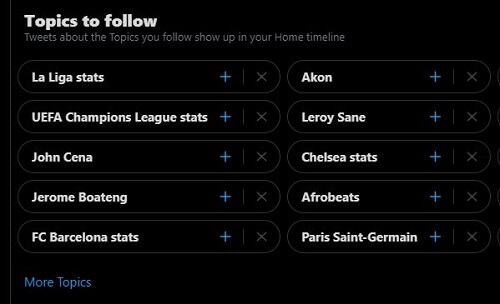
    3. Now you will see all the Topics Suggested for you under each category: Science, entertainment, technology, sports, and many more. Select the topics you want to follow
    4. If you choose not to follow a particular topic, you can press the × symbol to unfollow the topic.

    How To Follow A Topic On Twitter Method 2

    1. Scroll through your Twitter feeds
    2. Twitter will prompt you with topics they seem you might be interested
    3. Go through the issues and click the Plus icon to follow the ones you like

    How To See The Topics You Are Following

    1. Head over to your Twitter homepage
    2. Click on More
    3. Select Topic
    4. Click on the following, which is next to the Suggested Topics.

    How To See The Topics Someone Follows

    Maybe you might want to see topics that your favorite influencer follows, then let’s dive into the steps to know that.

    1. Visit the person’s Twitter profile.
    2. Click on More
    3. Select View Topics

    This will let you see all the topics your favorite person is following. You then go through and also follow the ones you like

    Conclusion

    With the help of Twitter topics, it is now easy to get what you love to read and watch on your Twitter timeline.

    Twitter topics allow you to see related content on the kind of topics you choose to see on the app.

    In this article, we went through why Twitter users should choose Topics on Twitter, we also went through how to follow topics on Twitter, and in addition, we covered how to see topics that someone follows.

    Mistakenly deleted your Twitter messages? You can check out this article covering how to recover deleted messages here.

  • How To Block And Unblock Someone On Telegram

    How To Block And Unblock Someone On Telegram

    Since we have decided to cover everything you need to know about using Telegram, I believe it’s best also to tackle how to block and unblock someone on Telegram.

    There is no doubt when it comes to tight privacy when using Telegram. The app makes you feel secure with its excellent features.

    If you are wondering about the kind of articles we have about Telegram, then you can check out:
    How to know if someone has saved your number using Telegram, how to clear Telegram messages and chat history, and if you find yourself among some annoying groups, you might also want to check out how to leave Telegram group the right way.

    Telegram makes it easy to chat with someone using either username or the person’s number. On Telegram, someone with your username can message you, unlike WhatsApp, which people can message you only if they have your number.

    Due to this, a lot of people abuse the app by disturbing others. If you have migrated to Telegram, I believe you will be enjoying the app, but at the same time, you will find random people messaging you and disturbing you. That is why this article will guide you on how to block and unblock someone on Telegram.

    Why Block Someone On Telegram?

    There are so many factors that can lead to blocking someone, and they are:

    • When someone keeps on disturbing you with random messages.
    • When you were having a conversation, and that person started to chat with you anyhow.
    • When someone tries to scam you by acting as a manager or a worker in crypto or any company
    • When you get fed up chatting with somebody, or that person has made you angry.

    Why Unblock Someone On Telegram?

    • When the person apologizes, this often happens, you could be in a heated argument with someone, and after blocking, the person comes back apologizing.
    • When you block the person out of anger

    How To Block Someone On Telegram

    1. Launch the Telegram app and on the home screen, click on the pin icon on the bottom right.
    2. Doing this will take you to all your contacts, scroll through your contacts, and select the one you want to block. If you have plenty of contacts, then you can click on the search icon on the top right to search for the name of the contact you want to block
    3. Open the chat between you and the person you want to block
    4. Click on their name, which is next to their profile picture.
    5. Now click on the three vertical lines on the top right.
    6. Select Block User
    7. Telegram will ask you if you are sure of the action you are about to take. Click on Block User again to block that contact.

    How To Unblock Someone On Telegram?

    1. To unblock someone on Telegram, locate the contact you have already blocked.
    2. Open the chat between you and that person.
    3. Now you will see the place where you can type messages covered with the Unblock button.
    4. To unblock the user, click on Unblock.
    5. Telegram will again ask you if you want to Unblock the user, click on OK.

    The steps are the same when blocking and unblocking someone on Telegram using the web or the software. If you know how to do this, you can apply the same on the web app.

    Conclusion

    We all love to chat and have fun, but sometimes, we will be surrounded by people we don’t feel comfortable with, same with chatting online, sometimes we want to make new friends, but we will see ourselves surrounded by toxic people.

    When this happens, we think of ways to block these guys. If you are on Telegram, we wrote this article for you covering how to block and unblock someone on Telegram.

    We also covered why the need to block someone on Telegram and why to unblock someone on Telegram.

  • How To Create A Thread On X (Formerly Twitter) The Right Way

    How To Create A Thread On X (Formerly Twitter) The Right Way

    What if I tell you you might have been creating a thread on X (Formerly Twitter) the wrong way?

    People tend to create a thread that makes it hard for their followers to follow along, and in this article, I will take you through how to create a line the right way.

    You might have seen many Twitter articles on this website, and this is because we want to make sure this website has everything you need to know about Twitter.

    Be it how to have an invisible name on that app, how to know when someone created a Twitter account.

    We also have an article covering how to recover deleted messages on Twitter and even see your follower with the most followers. And now we are going to make sure you create a thread the right way.

    I often see people making a tweet and then replying to each tweet and then taking it as creating a thread, but that is wrong!

    This is why you need to read this entire article to know how to do it right.

    We all make tweets on Twitter; we use Twitter to tell what is happening around us, and share motivational quotes, pictures, and videos.

    But Twitter now allows users to type everything under one tweet. Each tweet has a character limit.

    What is Twitter Tweet And Thread Limit?

    On Twitter, the thread limit is 280 characters. Limiting the characters makes sure your followers can read your story well and follow up without getting confused. It also makes it easy for your readers to retweet a section of your tweet.

    When one guy made a long tweet with a thread taking us through how to make money online, I decided to retweet the section he gave us the link because I wanted to visit that site later.

    Why Should You Use Twitter Thread?

    • To Explain Your Tweets

    In a thread, I mainly used to explain a tweet. You are talking about five easy ways to withdraw MTN mobile money without an ID card. You can use thread to cover all the five easy ways.

    • To Make It Easy For People To Share Some Parts Of Your Article

    As explained, the thread also makes it easy for people to know which side to retweet. Since each line comes with an option to like and retweet, you followers and readers will be able to do any of them to each of your thread. You might also want to read how to retweet a link on Twitter the right way.

    Creating a thread on Twitter using your computer is different from creating using your phone or the mobile app

    We are going to cover how to do both of them.

    How To Create A Thread On Twitter The Right Way On Computer 

    1. Open Twitter on your computer browser
    2. If you are on a computer, you will see What’s Happening? On your homepage, Now make your tweet.
    3. To create a thread, click on the Plus + icon that is next to the Tweet
    4. Add your following tweet, and if you want to add another line, you then click on the + icon again 
    5. To make your tweets go live, click on the Tweet All button.
    how to create a thread on twitter using computer

    How To Create A Thread On Twitter The Right Way On Your Android/IOS Phone 

    1. Log in to your Twitter app or website 
    2. On your homepage, click on the Plus + icon
    3. Select Tweet
    4. Now type in What’s Happening 
    5. To add a thread, click on the Plus + icon at the bottom right 
    6. Repeat the steps to add as many lines as you want
    7. To make your tweets go live, click on the Tweet All on the top right.

    Can You Reply To A Tweet With A Thread?

    Yes, it is easy to reply to a tweet with a thread. All you have to do is open that tweet, click on the message icon, and respond to that thread.

    Why Can’t I Post A Thread On Twitter?

    Most people complain about not being able to make a thread on Twitter. Creating a thread is a feature that Twitter has recently added.

    If you find it challenging to make a thread on Twitter, you might want to check the version of the Twitter app you are using.

    Also, if you are using a browser, you might want to upgrade your browser to the latest version of sign-in on another updated browser.

    Conclusion 

    Now it is easy to create a thread on Twitter, many people used to create a tweet and reply to themselves, thinking that is the right way to do it, but it was not.

    Doing it that way makes it hard for your followers to catch up on what you are trying to tell them, read how to hide likes on Twitter here.

    And in this article, went through how to create a thread on Twitter the right way. Since the steps are different on various platforms, we covered how to create a line using a browser and create a Twitter thread using Twitter’s mobile app.

  • How To Hide Likes On X (Formerly Twitter) 4 Easy Ways

    How To Hide Likes On X (Formerly Twitter) 4 Easy Ways

    If you would like to hide all your likes on X (Formerly Twitter), continue reading this article, as this article will cover all the ways to hide all your likes on the app.

    Twitter is a social media app known for getting authentic news, stories, videos, and everything happening worldwide; you can also read this article taking you through how to see the date you joined Twitter.

    As they always ask you, ‘What’s happening around you?‘ this is to let you know Twitter is an app that is known to let people know current happenings

    Twitter is also one powerful social media tool that deals with algorithms. The algorithm keeps you stay updated. It syncs some texts together to let you know related stories. Are you getting it?

    Okay, let me explain. On Twitter, someone you are following or can write WhatsApp not responding, and then another person too will later tweet about how to access WhatsApp even when it is not responding.


    Twitter can line up all those related tweets on your timeline, keeping you updated. I hope you get it now.

    This and other features make Twitter one of the best, and oh, before I forget, we all also know Twitter notifies your followers when you like or retweet a post.

    That is one of the cool features on Twitter that makes it easy to get everything happening worldwide.

    There is a way to hide your name on Twitter. You can click here to learn how to have an invisible name on Twitter, want to also know how to create a thread the right way? read it here.

    Although this new feature broadens your presence on the app and can sometimes lead to more followers, Twitter also uses these likes and tweets to generate similar tweets to you.

    So If you have been liking and retweeting joke tweets, you will see a lot of joke tweets because they use your interests to generate more ideas for you.

    But if you are not cool with that and want to hide your likes, then this is the best article to teach you everything you need to know.

    In this article, we will cover three easy ways to make sure nobody sees your likes on Twitter, these are simple ways, and it does not involve any hacking.

    How To Hide Likes On Twitter By Using The ‘Protect Your Tweets’ Feature

    1. Log in to your Twitter account, and on the left panel, go to More > Settings And Privacy
    2. Click on Privacy And Safety
    3. Open Audience And Tagging 
    4. Now Tick Protect You Tweets

    Images Taking You Through How To Hide Likes On Twitter By Using The ‘Protect Your Tweets’ Feature

    settings and privacy on twitter
    privacy and safety on twitter
    audience and tagging
    activate protect your tweets

    This feature makes sure your likes and retweets are not seen by anybody on the app.

    Here are some things to take note of when you decide to protect your tweets

    • When someone wants to follow your Twitter account, they can’t follow and be part of your followers, instead, they will hit Follow, and it will come as a request. You then decide whether that person follows you or not.
    • When you protect your account and someone searches for your name or contents in your tweets, search engines or Twitter will not show them because they become invisible to the search engines.
    • Only the ones following you can be able to see your tweets.

    Hide Tweets On Twitter By Manually Unliking All Your Likes 

    If you are not okay with the privacy terms, there are ways to hide your likes on Twitter manually, this is also a simple step, but it involves you manually doing it, without wasting much time. Let’s dive in.

    1. Visit your Twitter Profile 
    2. Click on Likes 
    3. Here you will see all your liked Tweets, find that particular tweet you want to unlike, and then unlike it. If you also want to unlike all of the likes, then manually go through and do them one by one.

    But that is considerable work, especially if you are a Twitter addict like me who will like almost any exciting tweet I see, if you are like me, then it will not be easy to unlike all the tweets, but there is a way around it.

    And that way is using Google Chrome too, unlike all your Likes on Twitter. Let’s dive into those steps.

    Please note that although this step is far better than manually doing it, it can only allow you to, unlike 3,200 tweets.

    I know that is too much for you but thought you should know about it since this article covers everything you need to know when it comes to unliking all Twitter likes

    How To Hide Likes On Twitter By Using Google Chrome Browser 

    1. Log in to your Twitter profile on Google Chrome
    2. Visit The Likes Page 
    3. Click on the F12 key on your keyboard to access the Chrome Console Tab
    4. Copy this code and paste it into the console field $(‘.ProfileTweet-actionButtonUndo.ProfileTweet-action–unfavorite’).click();
    5. Now hit run to let the script run. After it’s done, it will unlike all your likes tweets for you. Simple right?

    Images Taking You Through How To Hide Likes On Twitter By Using Google Chrome Browser

    twitter profile
    google chrome console

    How To Hide Likes On Twitter By Using Third-Party App

    Although using third-party apps makes the work easy to do, you should be careful about the type of app you choose.

    When you decide to do these kinds of work, these apps need access to your account, and because of this, you have to make sure you trust the app you are using.

    Using third-party apps does not mean all the apps are not legit. Some of them are legit, and this tutorial will cover one of the best third-party apps to dislike all your liked tweets.

    Circleboom is the app we are going to use for this tutorial. It is a freemium app, meaning it allows users to use the section for free. The free version will enable users to use 20 Tweets at a time, and also, if you want to use the app to the fullest, you can pay for it.

    How is how to use Circleboom to dislike all your likes and tweets

    1. On your Circleboom dashboard, log in to your Twitter account with your Twitter credentials to see Twitter analytics and activities.
    2. Head over to my Tweets. You will then be able to all the tweets you have made and choose, Unlike Tweets.
    3. You can select the tweets you want to unlike, but if you are like me and want to hide everything, click on, Unlike All.

    Do you know it is possible to see your followers with the most followers on Twitter? Click on that article to understand how to do that. Also, if you have mistakenly deleted a critical message on Twitter before, here is a way to do that.

    Conclusion

    Now hiding all your likes on Twitter shouldn’t be hard work. In this article, we went through many ways to hide all your likes on Twitter. We covered going private, masking unliking all your likes using Google Chrome, and also using third-party apps.

  • How To Recover Deleted Messages From Twitter

    How To Recover Deleted Messages From Twitter

    You ever searched for how to recover deleted messages on Twitter before?

    Then let me tell you that this is the article you have been looking for because this article is a detailed guide taking you through how to recover deleted Twitter messages, both text, images, and videos, the right way.

    We all have been at a point where we mistakenly deleted essential messages and then decided to find ways to recover them.

    We all know Twitter is one of the best social media apps, which is the source of authentic news, funny videos, and a whole lot more.

    People tend to believe news from Twitter than any other source, a; so Twitter is where high profile individuals pass their message.

    People will decide to check their president’s Twitter handle page to see if they have tweeted any issue happening in the country, even before believing what the media is saying. You can also read this article covering how to see your follower with the most followers.

    Twitter is also the best place to have a conversation. Aside from getting entertained, you also get to send and receive messages.

    But what will you do if you mistakenly delete your Twitter messages?

    That is why you are here; this article gives you hope and possible methods to recover your deleted message.

    Twitter has three easy ways to recover your deleted messages, and they are:

    The Archived Feature 

    Twitter is a mighty social media app, and there is no doubt that place has become the source of authentic information.

    Luckily for us, whenever you mistakenly delete your Twitter messages, Twitter keeps a copy of them, and you can still get it back in an archived form.

    How To Recover Deleted Messages From Twitter Using The Archived Feature 

    1. Log in to your Twitter account 
    2. On your left panel, locate More and click on It. It will expand the options. 
    3. Click on Settings And Privacy
    4. Since we want to get back our deleted Twitter messages, click on Download Archive Of Your Data. Doing this will allow you to get the Twitter messages you mistakenly deleted 
    5. To receive your deleted chats, Twitter will send a verification code to your email or phone number to confirm it is you requesting for that archived chats. Twitter will ask you to type in your account password, do that. After that, Twitter will decide to verify you again. 
    6. Verify your password again
    7. Now click on Request Archive.
    8. Twitter will let you know when your archived data is ready. You should receive it in your mail after 2-4 days, depending on the size of your archived data.
    9. On your mail, open the Twitter archived mail and click on the Download link.
    10. Now on your downloads folder, locate the file and extract it with any extracting tool like 7Zip or WinZip. You will then get a new folder called Twitter.
    11. Open that folder, and you will see your archived chats in a .html form, launch it to see all your messages.

    Images taking you through how to recover deleted messages from Twitter Using The Archived Feature

    on twitter click on more
    click on analytics on twitter
    click on download archived data
    verify with your password
    verify it is you
    request archived

    Turning On Sync

    In other to avoid losing your deleted messages, you can also turn on Syncing. Depending on a sync will help your messages sync to your preferred storage, and anytime you mistakenly delete a message, you can restore it.

    Take A Backup

    Well, this might sound like a lot of work to you, but if you are fond of intentionally deleting messages, then this method will be your favorite.

    You can save a screenshot of the chats or copy and paste the texts in the conversation to have a copy of it.

    Conclusion

    Now you don’t have to panic when you mistakenly delete Twitter messages. There is a way to recover deleted Twitter messages, and in this article, we went through that.

    Even though this article covers how to recover deleted Twitter messages and other ways to make sure you don’t lose your Twitter messages again.

    You might also want to check out this article covering how to retweet a link on Twitter the right way and also how to have an invisible name on Twitter. knowing this trick will make your account stand out in this social media app.

  • How To See Your Follower With The Most Followers On Twitter

    How To See Your Follower With The Most Followers On Twitter

    Have you ever wondered if it is possible to see your followers with the most followers on Twitter?

    Getting to know your followers is one of the best ways to know who has your followers with the most followers.

    Knowing the one with the most followers yet following you will also help you understand the celebrities who have followed you.

    So, in this case, this article will also cover how to know the celebrities that are following you.

    Some are lucky to get a massive number of followers. Others, too, are not all that lucky.

    Twitter is an exciting social media app that allows you to make posts in text, images, or videos. The platform is also known as the headquarters of authentic news.

    Some people make money from Twitter, and we all know it.
    Making money on Twitter is all about growing, getting more followers, and after that, becoming an influencer and then connecting with brands for advertising.

    Many brands pay these Twitter influencers to advertise for them and, in return, pay them.

    But we will cover that article later, and this article is mainly for people who want to know their followers with the most followers on Twitter.

    So without wasting much time, let’s dive in.

    How To See Your Follower With The Most Followers On Twitter

    1. Sign in to your Twitter account and on the left panel, click on More
    2. Click on Analytics
    3. Scroll down, and you will see Top Follower
    4. There, you can see the account following you with the most followers.
    see top follower

    conclusion

    When it comes to Twitter, you have the power to know a lot of things yourself. Ever wonder if you can be able to see an account following you with the most followers?
    Then the answer is yes, you can.

    In this article, we went through how to see your followers with the most followers.
    Knowing this will help you see that celebrity secretly admiring your posts and a lot more.

    Talking about Twitter, do you know we have other helpful articles about Twitter?
    You can read this article covering how to know when a Twitter account was created.

    Also, you can read how to retweet a link on Twitter the right way, and if you want another Twitter trick, you can read this guide covering how to have an invisible name on Twitter, not forgetting how to recover deleted messages from Twitter.

  • How To Take A Screenshot On Snapchat Without Anybody Noticing

    How To Take A Screenshot On Snapchat Without Anybody Noticing

    Snapchat is a popular social media app known for its excellent filters, photo-editing tools, and features like ‘Stories’ and ‘Discover.’

    Originally launched in 2011, Snapchat gained popularity by allowing users to send pictures and videos that disappear after 24 hours.

    In this article, we’ll explore a simple trick that enables you to take screenshots on Snapchat during a chat without notifying the other person.

    Snapchat, with its focus on privacy, uses end-to-end encryption in its messaging app. Additionally, features like ‘My Eyes Only’ enhance privacy by allowing users to access their photos only through a password.

    While Snapchat has evolved with various features, such as ‘Stories’ for sharing content that disappears after 24 hours and ‘Discover’ for brand advertising, it has maintained a strong emphasis on user privacy.

    Now, let’s delve into the intriguing features of Snapchat that contribute to its addictive nature, providing users with a unique and engaging messaging experience.

    Awesome Snapchat Features

    Get A Notification When Someone Is Typing

    Snapchat’s real-time notification feature, indicating when a user is typing with the message “This user is typing,” adds a dynamic and interactive element to the chatting experience.

    This feature goes beyond the conventional indication of someone typing, as it provides an instant notification, creating a more engaging and responsive platform for communication.

    Interestingly, this particular feature sets Snapchat apart from other popular social media apps. While platforms like WhatsApp also indicate when someone is typing, the notification is typically confined to the app interface.

    In contrast, Snapchat takes it a step further by providing an external notification, ensuring that users are promptly aware of ongoing interactions even when they are not actively using the app.

    This real-time notification feature not only enhances user experience but also contributes to the distinctiveness of Snapchat’s messaging platform.

    As technology and social media continue to evolve, such innovative features play a role in shaping user expectations and preferences across various platforms.

    Voice And Video Calls

    Snapchat’s video and audio calling features provide users with a dynamic and extended means of staying connected with friends and family.

    In instances where a call is made, and the recipient is unavailable, Snapchat offers a thoughtful feature. Users have the option to send a message to the person they attempted to call, notifying them of the attempted communication.

    This feature adds a layer of convenience and consideration, allowing users to seamlessly communicate their intent or leave a message for the person who missed the call.

    It enhances the overall communication experience on the platform, reflecting Snapchat’s commitment to providing users with engaging and user-friendly features.

    As technology continues to shape how we connect and communicate, these additional features contribute to the richness of the Snapchat experience, making it not only a platform for multimedia sharing but also an interactive and versatile tool for staying in touch with those who matter.

    Snap Map

    Snap Map is one of my favorite Snapchat features; this feature allows you to know the location of your friends and families.

    With Snapchat, you can know the location of anybody you are chatting with. Snapchat also lets you know the kilometers and miles away from any of your friends.

    This excellent feature is used to make new friends around you. All you have to do is go to your Snap Map and then you will see all the Snapchat users around you on the map, click on any of them and start having a conversation. (This is one feature that will take whatsapp 100 billion years to implement).

    All these Snapchat features make the app one of my favorite messaging apps.

    And now, let’s come to the messaging part. Snapchat main motive is to alert both users on what each other is doing inside the chat.

    So let’s say if you are typing, Snapchat will let the other user know. If you are reading the message you received, Snapchat will let the sender know you are reading.

    With Snapchat, chats disappear after 24 hours, but users can change it to disappear after they read when chatting with someone.

    The user changes how they want the conversations to disappear, Snapchat will notify you when you also make any changes, Snapchat will let the other user know.

    Snapchat will also notify the user when you decide to save any image or video you received regarding media.

    The same applies to when you decide to take a screenshot of the chat.

    When I was chatting with one girl on Snapchat, this girl sent me a nice image, and then knowing the image would disappear after 24 hours, I decided to take a screenshot, and then Snapchat notified the girl.

    She then asked why I did that, and I had to lie for us to continue chatting.

    You might have encountered the same problem before, or you will experience one once you decide to chat with Snapchat users.

    That is why this article is for you. In this article, I will take you through how to take a screenshot on Snapchat, and the person you will be chatting with will have no clue that you have taken a screenshot.

    So without wasting much time, let’s dive in.

    How To Take A Screenshot On Snapchat Without Anybody Knowing

    1. You first need to turn off Airplane Mode and then turn off data or WIFI.
    2. Open the chat where you want to take the screenshot 
    3. Open the screen recorder app and then allow it to record the chat screen. After that, save the video and close Snapchat.
    4. Now head over to the video and take a screenshot from the video.
    5. You have finally gotten a screenshot of the chat.

    So Why Did We Use The Screenshot Method?

    This feature is the only working feature that allows you to get a screenshot of a chat, there used to be many tricks to take a screenshot, but Snapchat always keeps on working on them to make sure it doesn’t work again.

    At first, you could turn on airplane mode and take a screenshot, but Snapchat has worked on it right now, and when you turn on airplane mode and take a screenshot, Snapchat will notify the user when you get data and come back online.

    (Although it still works for some phones, and you can try it if it works for you, make sure to try it on someone else and not your crush that you badly need a screenshot of).

    Conclusion 

    Now you don’t have to worry about taking a screenshot on Snapchat without getting caught. In this article, we went through the easiest way to get a screenshot between you and someone on Snapchat without the person knowing you took a screenshot.

    We also went through some of the excellent Snapchat features that make the app one of the best social messaging apps.

  • How To Easily Remove Archived Box From The Top Of WhatsApp Chat Screen

    How To Easily Remove Archived Box From The Top Of WhatsApp Chat Screen

    Wondering if you can hide that archive box from the top of your WhatsApp chat screen?

    Then this article is for you. In this article, I will take you through how to make sure the archived tab is not the first thing you will see when you open your WhatsApp.

    We all know WhatsApp to be one of the most popular messaging apps on this planet.

    With over 2 billion active users, the app is undoubtedly the most used messaging app on this planet.

    WhatsApp is a messaging app that you can use to send text messages, images, videos, and voice notes, make audio and video calls, and even send documents.

    When WhatsApp was launched, it only started with messages, and as time went on, they continued adding more features to this messaging app, and oh, not forgetting WhatsApp status.

    What makes WhatsApp stand out is how they continue to surprise their users with new features and listen to their users on the type of features they will want to be added.

    Before proceeding, let’s walk through how to archive a chat.

    How To Archive A Chat

    1. On your WhatsApp home screen, press and hold the contact you want to hide their chat

    2. On the top right corner, you will see a box with a down arrow inside. Click on that arrow to hide that particular chat 

    At first, people could hide WhatsApp chats by adding that chat to the archived discussions, but there was a problem.

    The problem was that anytime you archive a chat and that user messages you again, the letter then disappears from the archive box, and then it becomes available on your chat screen.

    This was making the archive feature useless as many people wanted archived chats to stay there forever.

    But like I said, WhatsApp is good when it comes to working on its user’s opinions.

    Now it is easy to archive a chat, and no matter how many times that person messages you, the conversation will never leave the archive box.

    The problem was that WhatsApp would now show an archive box on top of the chat screen.

    So right now, when you archive a chat, it will be in the archive box, and when a contact in the archive box messages you, you will see a small notification behind the archive box, but the chat will not leave the archive box.

    And that is why you are here. In this article, I will take you through how to make sure the archive box does not stay on top of the chat screen, so without wasting much time, let’s dive right in.

    How To Easily Remove Archived Box From The Top Of WhatsApp Chat Screen

    1. On your WhatsApp home screen, open the archived box
    2. Click on the three vertical lines on the top right and select Archive Settings 
    3. Now untick the tab that says Keep Chats Archived
    4. Doing this will make sure your archived chats will not be the first chats to see but rather the last message to see on your WhatsApp chats.

    But what if you archived chats to return to the first message you will see when you open your chat screen?

    There is a way to also go about that if you are used to seeing archived messages first.

    To do this: 

    1. On your WhatsApp home chat screen, click on the three vertical lines and select Settings 
    2. Click on Chats 
    3. On the Archived Chats tab, tick on the account that says Keep Chats Archived 

    Conclusion 

    Now you can hide chats on WhatsApp using the archived box, and nobody will find out you hid a discussion there. Because now, when you send a conversation to archive, it will never pop up on your chat screen again, even when that number sends you 10 billion messages.

    In this article, we also went through how to remove the archive box from the top screen to the bottom of all your WhatsApp chats, making it hard for someone to see the messages you have hidden.

    When it comes to WhatsApp, we have a lot of useful articles about this messaging app, you can read this article covering how to know if someone has saved your number, the trick we used in this article is using WhatsApp to find out. Also, check out the most popular WhatsApp features and how they work

  • How To Retweet A Link On X (Formerly Twitter) The Right Way

    How To Retweet A Link On X (Formerly Twitter) The Right Way

    Discovering the correct procedure for retweeting a link on X (Formerly Twitter) is a fundamental aspect of leveraging this influential social media platform.

    If you are seeking guidance in this regard, you have come to the right place.

    Twitter, renowned as one of the foremost social media platforms globally, serves as a prominent source for authentic news, entertaining videos, and diverse content.

    Despite its widespread popularity, some individuals find Twitter to be one of the more intricate applications.

    It is not uncommon for individuals, upon their initial experience with the app, to encounter challenges to the extent that a significant portion, over 40%, choose to uninstall it shortly after their first use. Reflecting on my own experience, I can attest to facing difficulties in navigating Twitter when I first installed it in 2012, leading to my decision to uninstall it.

    However, after returning a year later, I committed to learning the intricacies of the app, successfully overcoming the initial hurdles.

    Recognizing that others may share similar experiences, emmarnitechs.com has taken the initiative to educate individuals on maximizing their utilization of the Twitter app.

    Our educational journey began with elucidating how to have an invisible name on Twitter. In today’s article, we shift our focus to the meticulous process of retweeting a link on Twitter.

    Before delving into the mechanics of a retweet, it is imperative to comprehend the foundational term of a “tweet.” In the general context, a tweet signifies the cheerful chirp of a young bird.

    However, within the realm of Twitter, a tweet, or tweeting, refers to the act of composing a post, whether it be in the form of text, video, or audio.

    Embracing the symbolism of the young bird depicted in the Twitter app’s logo, every user is metaphorically a bird, and the act of making a post on Twitter is aptly named tweeting, signifying that the virtual bird is about to make its online vocalization.

    For those embarking on this educational journey, our aim is to provide comprehensive insights into navigating Twitter proficiently. Stay informed with our step-by-step guides, and explore the various facets of the Twitter app for an enriched social media experience.

    So, What Is A Retweet, And How Does It Work On Twitter?

    A retweet means re-sharing your tweet or a tweet made by someone.

    When you retweet posts, it is seen by all your followers. 

    Types Of Retweets On Twitter

    types of twitter retweet
    • Normal Retweet – With this option, you will be able to retweet a post without adding your text or opinion to it 
    • Retweet with a quote: This option allows you to Retweet a post with your post added to it.
    • Retweeting with a quote is mainly used to reply to tweets, but your reply will be above the tweet you replied to with this option.

    How To Retweet a Link on Twitter The Right Way

    1. Open the Twitter app and then open the tweet you want to retweet. You will see four icons: the comment icon, the retweet icon, the Like icon, and the share icon.
    2. Click on the second icon, which is the retweet icon 
    3. Now select if you want to Retweet the post or Retweet with a quote.
    4. If you want to retweet with a quote, select the second one and add your comment.
    5. When done, select Retweet on the top right to make your Retweet go live.

    And that’s all the steps needed to Retweet a post. Once again, bear in mind that on Twitter, when you make a retweet, all your followers will see it.

    And that is one feature about Twitter that I like compared to Facebook, which only allows only a tiny part of your friends to see your posts when shared and your comments under people’s posts.

    Conclusion 

    Now you don’t have to guess which one to choose when you want to retweet a post. In this article, we went through how to retweet posts the right way, and we also went through types of retweets and how they work.

    Do you want another Twitter tutorial? check out how to know when a Twitter account was created.